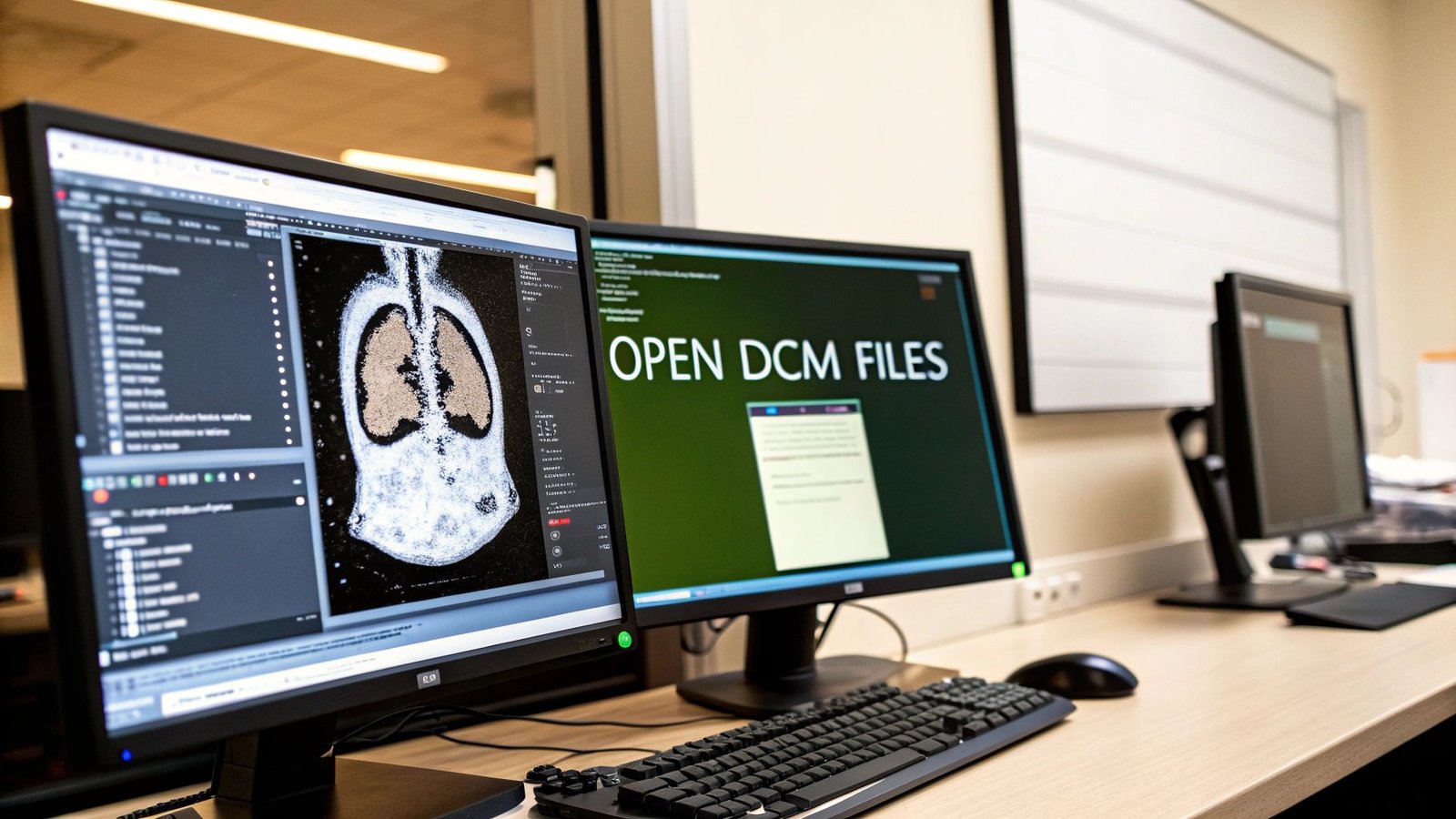
If you’ve ever tried to open a .dcm file, you’ve probably realized it’s not like opening a regular photo. That’s by design. These files are much more than simple images; they're comprehensive medical records, and you need the right tools to unlock them.
A DCM file, which stands for DICOM, is the universal standard in medical imaging. It securely packages high-resolution images from MRIs, CT scans, and other modalities along with a ton of critical patient data. Getting a handle on this structure is the first step to working with them effectively.
What’s Really Inside a DCM File?
At first glance, it's easy to mistake a DCM file for something like a JPEG or PNG. But under the hood, it’s built for the high-stakes world of healthcare. It's less like a single snapshot and more like a sealed digital envelope containing both the image and all its vital paperwork.
This all-in-one design is what makes the DICOM standard so trusted in medicine. Every file is a complete, self-contained record, ensuring a patient's scans are permanently tied to their identity and the specifics of the examination.
It's All About the Metadata
The real magic of a DCM file is how it combines two distinct parts into one inseparable unit. This isn't just a technical detail—it’s a fundamental part of clinical workflow and patient safety.
Here’s a simple breakdown of what’s inside:
- The Image Data: This is what you see—the detailed grayscale slices of a CT scan or the clear view from an MRI. The format prioritizes preserving every bit of visual information, avoiding the quality loss you'd get from typical image compression.
- The Metadata Header: This is the "paperwork." It's packed with information essential for diagnosis and record-keeping, from the patient's name and ID to the exact settings of the scanner when the image was taken.
This integrated approach is a critical safety feature. By bundling the header and image data together, the file ensures a patient's information can't be accidentally separated from their scan. This is non-negotiable for maintaining accurate medical records and preventing the kind of mix-ups that can have serious consequences. You can find more in-depth information about this file structure on the National Center for Biotechnology Information's website.
So, Why Won't a Normal Photo Viewer Work?
Once you understand this two-part structure, it becomes obvious why you can’t just double-click a DCM file and expect it to open in your default photo app. A standard program is built to read pixels, but it has no idea what to do with the rich, structured metadata packed into the DICOM header. It will either throw an error or just ignore the most important context.
The Bottom Line: To properly view a DICOM file, you absolutely must use a dedicated DICOM viewer or a specialized programming library. These tools are built from the ground up to parse both the image and its metadata, presenting them together in a meaningful way. Without them, you’re looking at a picture without the story.
This isn’t just about convenience; it’s about protecting patient data and giving medical professionals the full picture they need for an accurate diagnosis. Whether you're a radiologist, a researcher, or a patient wanting to view your own scans, using the right tool to open a .dcm file is the only way to correctly access this vital information.
The Best Free Viewers for DCM Files
If you just need to open a DCM file, grabbing a dedicated viewer is almost always the easiest and fastest way to get it done. These programs are built from the ground up to understand the complexities of DICOM, so they correctly display not just the image but all the critical patient and study data that comes with it.
But the real question isn't if you should use a viewer, but which one. The best tool for a patient who just wants to see their own MRI scans is very different from what a medical researcher needs for complex analysis. It all comes down to your specific goal.
Top Choices for Windows Users
For anyone working on a Windows PC, MicroDicom is a fantastic place to start. It’s incredibly lightweight and boots up fast, with a clean interface that won’t leave you hunting for basic functions. It’s been actively developed for over 15 years and has racked up more than 2 million downloads—a clear sign of its reliability in the community.
With MicroDicom, you can open DICOM files from a folder, a ZIP archive, or even a CD. It also packs in some handy tools for editing DICOM tags or anonymizing files to protect patient privacy. For a deeper dive into what makes these viewers so effective, check out these insights on how to open DICOM files on pycad.co.
Another heavy hitter for Windows is the RadiAnt DICOM Viewer. While the free version has some limitations, its performance is its main selling point. If you’ve ever tried to scroll through a massive CT or MRI series with hundreds of images, you know how frustrating lag can be. RadiAnt is optimized for this exact scenario, offering a smooth and fluid experience that many professionals rely on for quick reviews.
Don't let the "free" label fool you into thinking these are just basic image viewers. Many come packed with powerful features like multi-planar reconstruction (MPR), measurement tools, and even 3D rendering—capabilities that used to be reserved for expensive, hospital-grade PACS systems.
Top Free DICOM Viewer Comparison
Choosing the right tool can be tricky, so this table breaks down the key features of the most popular free DICOM viewers to help you find the best fit for your needs.
| Viewer Name | Best For | Key Features | Operating System |
|---|---|---|---|
| MicroDicom | Everyday viewing and simple tasks on Windows | Lightweight, fast, user-friendly, tag editing, anonymization tools | Windows |
| RadiAnt | Fast review of large image series | High-performance scrolling, fluid user experience, multi-modality support | Windows |
| Horos | In-depth research and analysis on macOS | Open-source, extensive plugin support, advanced 2D/3D/4D/5D tools | macOS |
| Miele-LXIV | Quick and simple viewing on macOS | Fast, no-frills interface, optimized for Apple Silicon, clean design | macOS |
Ultimately, the best viewer is the one that fits seamlessly into your workflow, whether that means a simple tool for quick checks or a powerful platform for detailed analysis.
Best Options for macOS
The ecosystem for Mac users looks a bit different. Here, Horos is the undisputed king of open-source DICOM viewers. It was born from OsiriX, a well-known commercial viewer, and it brings an incredible amount of professional-grade functionality to the Mac platform at no cost. You’ll find Horos is a favorite in academic and research circles because of its robust toolset and extensibility through plugins.
If Horos feels like overkill for your needs, Miele-LXIV is a great, lighter-weight alternative. It’s perfect for Mac users who just need a fast, straightforward viewer to quickly review images without getting bogged down in complex features.
At the end of the day, your choice comes down to two things: your operating system and what you intend to do with the file. For simply looking at an image, a tool like MicroDicom or Miele-LXIV is perfect. But for more demanding work, something like Horos is probably a better long-term fit.
Opening DCM Files Programmatically with Python
Dedicated viewers are fantastic for taking a quick look at a single scan. But what happens when you have a folder with hundreds of them? Manually opening each one to check metadata or perform an analysis is a non-starter. This is where you need to roll up your sleeves and get programmatic.
When it's time to automate tasks—like anonymizing patient data across an entire dataset or pulling specific imaging parameters for a research study—Python becomes your most powerful ally. It gives you a way to open a dcm file, dig into its contents, and handle everything with surgical precision.
Getting Your Python Environment Ready
The go-to tool in the Python world for anything DICOM-related is a library called pydicom. Honestly, it’s the gold standard. It takes the notoriously complex DICOM format and makes it surprisingly manageable, even if you're new to the world of medical imaging.
First things first, you'll need to install it. You’ll also want matplotlib on hand, which is the classic library for plotting and displaying images in Python.
Getting them installed is a one-line command. Just open up your terminal or command prompt and type:
pip install pydicom matplotlib
With that simple step, your environment is ready. You have everything you need to start scripting, whether you're just viewing an image or building a complex data pipeline.
A Quick Pro-Tip: DICOM files can be massive, especially for high-resolution modalities like CT or MRI. While
pydicomis pretty memory-efficient, it's good practice to only load what you need. For example, you can read all the metadata from a file without loading the huge pixel data array into memory until you absolutely need it.
A Practical Python Script for Opening DCM Files
Let's put this into practice. Say you have a file named scan.dcm. Your goal is to quickly check the patient's name stored in the metadata and then display the actual image. It’s a common first step in many workflows.
The journey of choosing the right tool often depends on the task at hand, as this graphic shows.
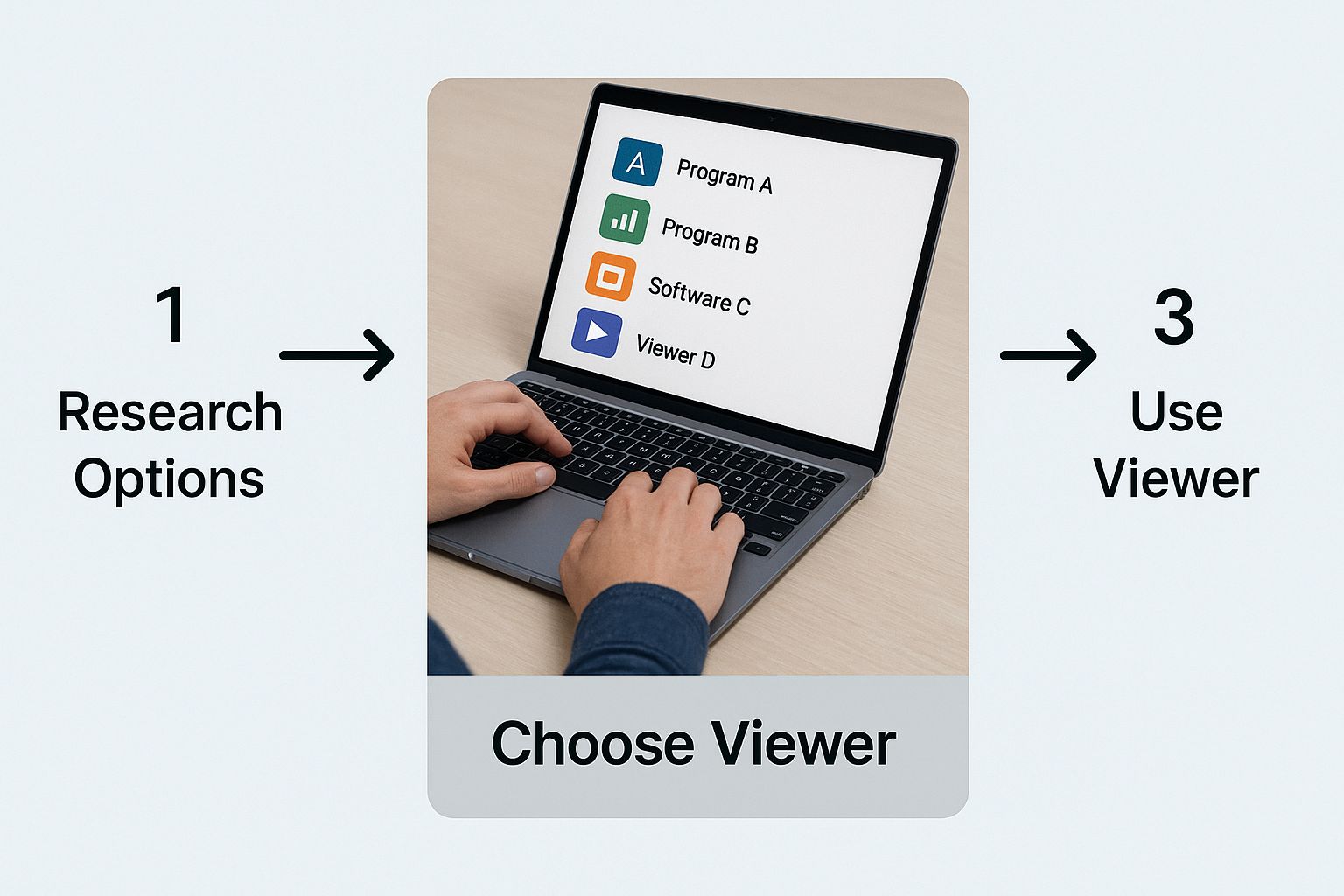
Sometimes a viewer is all you need, but for scale and automation, code is the way to go.
Here’s what a simple, effective Python script looks like:
import pydicom
import matplotlib.pyplot as plt
First, point to where your DICOM file is located
file_path = 'scan.dcm'
try:
# Use pydicom to read the file
dicom_dataset = pydicom.dcmread(file_path)
# Now, you can access metadata tags like attributes.
# The tag for Patient's Name is (0010,0010).
patient_name = dicom_dataset.PatientName
print(f"Patient Name: {patient_name}")

# To show the image, we grab the pixel data
# and use matplotlib to display it.
plt.imshow(dicom_dataset.pixel_array, cmap=plt.cm.gray)
plt.title("Medical Scan")
plt.axis('off')  # This just hides the x and y axes for a cleaner look
plt.show()
except FileNotFoundError:
print(f"Error: Couldn't find the file at '{file_path}'")
except Exception as e:
print(f"Something went wrong: {e}")
The real workhorse here is pydicom.dcmread(), which parses the entire file into a handy Dataset object. From that object, you can access metadata elements like PatientName just as you would any other Python attribute.
The actual image itself is stored in the pixel_array, which matplotlib can then render beautifully. This little script is the foundation for so much more—from here, you could easily loop through thousands of files, build automated quality checks, or even start preparing datasets to train a machine learning model.
Using MATLAB for Advanced Image Analysis
When you need to go beyond simply viewing a medical image and dive into serious research, engineering, or algorithm development, MATLAB is often the tool of choice. While Python is great for building data pipelines, MATLAB's integrated environment is purpose-built for the kind of interactive, matrix-based work that image analysis demands. It lets you open a file dcm and immediately treat it as a numerical matrix, ready for complex mathematical operations.
The heavy lifting for DICOM files in MATLAB is handled by the Image Processing Toolbox. Two functions are your bread and butter here: dicomread() and dicominfo(). Just as they sound, one pulls in the actual pixel data, and the other unpacks all that rich metadata from the file's header.
Reading and Inspecting DCM Files
Getting your hands on the data is incredibly direct. I always recommend starting with dicominfo(). This function is your first look inside the file, letting you examine the metadata without having to load what could be a massive image array into memory. It's the perfect way to quickly check patient details or confirm you've got the right study.
Once you know you have the correct file, dicomread() is what you use to pull the image data into a matrix. For anyone with a background in matrix computing, this feels completely natural. That matrix becomes your canvas for everything that follows, from simple measurements to sophisticated transformations.
The real magic of MATLAB is its all-in-one environment. You can read a DCM file, visualize it, run a custom filter, and plot the results—all in a few lines of code and without juggling multiple applications. It’s that seamless workflow that makes it so powerful.
To give you a clearer picture, this screenshot from the official MATLAB documentation shows just how simple it is to load a sample CT image.

The single command, X = dicomread('CT-MONO2-16-ankle.dcm');, is all it takes. The image data is loaded into the variable X, and you're immediately ready to start your analysis.
Advanced Processing Scenarios
Where MATLAB truly proves its worth is in more complex, demanding applications. A common scenario for medical researchers is working with a series of 2D DICOM slices that together form a 3D volume, like an entire CT scan of an organ.
A typical workflow might look something like this:
- Load the Series: You'd start by reading an entire directory of DCM files, programmatically stacking each 2D slice to build a single 3D matrix.
- Reconstruct the Volume: From there, you can use MATLAB's powerful visualization tools, like
volshoworslice, to render the complete 3D volume. This lets you inspect the anatomy from any angle, which is fantastic for diagnostics or surgical planning. - Apply Algorithms: With the data now in a tidy 3D matrix, you can unleash the full power of the Image Processing Toolbox. This could mean anything from using edge detection to find tumor boundaries, applying noise reduction filters to clean up the scan, or running segmentation algorithms to isolate specific tissues.
This kind of iterative environment is what makes MATLAB a go-to for discovery. You can test a hypothesis, see the result instantly, and refine your code on the fly, making it an essential tool for anyone trying to innovate in medical image analysis.
What to Do When DCM Files Won't Open
It’s a frustrating moment for anyone in the medical imaging field: you try to open a .dcm file and are met with a cryptic error message. Don't worry, this is usually a solvable puzzle. Most of the time, the problem boils down to a few common culprits.
The biggest offender is often simple file corruption. This can happen easily during a file transfer or if a storage drive starts to fail. The most vulnerable part is the file's header, which holds all the critical metadata. If a DICOM viewer can't read that header, it has no map to understand the image data, and the file won't open.
Bad Headers and Tricky Compression
If you think you're dealing with a corrupted header, some of the more advanced DICOM viewers actually have built-in repair functions. These tools will try their best to piece together the damaged or missing metadata from what’s left of the file. It’s not a guaranteed fix, but it's absolutely worth a shot before you write the file off completely.
This is also where good data management practices come in. To avoid losing critical data to corruption, having solid cloud backup strategies is non-negotiable for ensuring your data is safe long-term.
Another frequent headache is a compression mismatch. A .dcm file isn't always what it seems; the pixel data inside can be compressed using different algorithms like JPEG, JPEG 2000, or RLE. If your particular viewer doesn't speak the language of the compression used, it won't be able to display the image, even if the file is otherwise perfectly healthy.
Pro Tip: The quickest way around a compression problem is to either try a different viewer or use a conversion tool. A more robust viewer might support the format out of the box. If not, a dedicated DICOM converter can re-encode the file into a more universal, uncompressed format that almost any software can read.
Dealing with Proprietary Tags
Sometimes, the file isn't broken at all—it just contains non-standard data. The whole point of the DICOM standard was to create a universal language for medical images. However, equipment manufacturers sometimes add their own proprietary tags to the metadata to store device-specific information.
A well-designed DICOM viewer should just skip over any tags it doesn't recognize, but every now and then, a program will trip over this unexpected data and throw an error. It’s a reminder that even with a standard in place since 1993, achieving perfect universal compatibility is an ongoing effort. For a deeper dive into the standard's evolution, check out this history at Medicai's blog.
If you're stuck, here are a few practical steps to try:
- Switch Your Viewer: This is the easiest first step. A different piece of software might have more forgiving error handling or broader support for various formats.
- Run a Validation Tool: Utilities like
dciodvfyare fantastic for this. They analyze a DCM file and tell you exactly where it deviates from the official standard, pointing you straight to the source of the problem. - Update Your Software: Make sure your DICOM viewer is running the latest version. Developers frequently release updates that fix bugs and add support for new compression schemes or tags.
By working through these possibilities one by one, you can almost always figure out why a DCM file is giving you trouble and get back to viewing your images.
Got Questions About DCM Files? We've Got Answers.
When you're dealing with medical imaging, a few common questions always seem to pop up. Think of this as the practical advice section—the kind of stuff you'd ask a colleague who's been working with this format for years. Let's clear up some of the most frequent uncertainties about handling DCM files.
Can I Just Turn a DCM File into a JPEG or PNG?
You sure can, but you need to know what you're giving up. When you convert a DCM file to a standard format like JPEG or PNG, you're essentially just ripping out the picture and throwing away everything else.
All that rich, critical metadata—patient details, study information, the specific parameters of the scan—is lost forever. The conversion creates a "flat" image. For a quick look or dropping it into a presentation, that’s perfectly fine. But for any kind of clinical review or diagnosis? That lost data is a dealbreaker. Most decent DICOM viewers and coding libraries have a simple "Export As" option to do this.
Aren't All DCM Files Pretty Much the Same?
Not even close. They all adhere to the DICOM standard, but the actual contents can be wildly different depending on what kind of scan it is. It's like saying all vehicles are the same—a motorcycle and a freight train both have wheels, but that’s where the similarity ends.
- CT Scans: These are usually a whole stack of individual 2D images, or "slices," that you can scroll through to see a 3D volume.
- MRIs: A lot like CTs in that they're often a multi-slice series, but they show different tissue contrasts and details.
- X-Rays: Typically just a single, straightforward 2D image.
- Ultrasound: This could be one static image or a "cine loop," which is basically a short video clip.
This is why one DCM file might open as a single picture, while another loads as a dynamic series you can navigate. The structure is dictated entirely by the medical exam it came from.
Why on Earth Is My DCM File So Huge?
The massive size of DCM files comes down to one thing: uncompromising image quality. For a doctor to make an accurate diagnosis, every last detail has to be preserved. Medical images are stored with very little, if any, "lossy" compression. A single, uncompressed CT slice can have millions of pixels, and each one has a high bit depth to capture a massive range of grayscale tones.
Now, imagine a full scan with hundreds—or even thousands—of those high-fidelity slices. The total file size can easily balloon into hundreds of megabytes, sometimes even gigabytes. It's big for a reason: that size is what guarantees the medical integrity of the image.
Is It Okay to Email DCM Files?
This is a big one: No, you really shouldn't. Standard email is not a secure channel, and it's definitely not HIPAA-compliant. DCM files are packed with Protected Health Information (PHI) in their metadata.
Sending that over an unencrypted network is a major privacy and security risk. If you need to share medical images, stick to secure, compliant platforms designed for that purpose. The only exception is if you've first "anonymized" the file by completely stripping out all the identifying patient data before you attach it.
At PYCAD, we build intelligent solutions for the medical imaging world, from managing complex data to deploying AI models. If you're looking to bring AI into your medical device or clinical workflow, see what we can do at https://pycad.co.