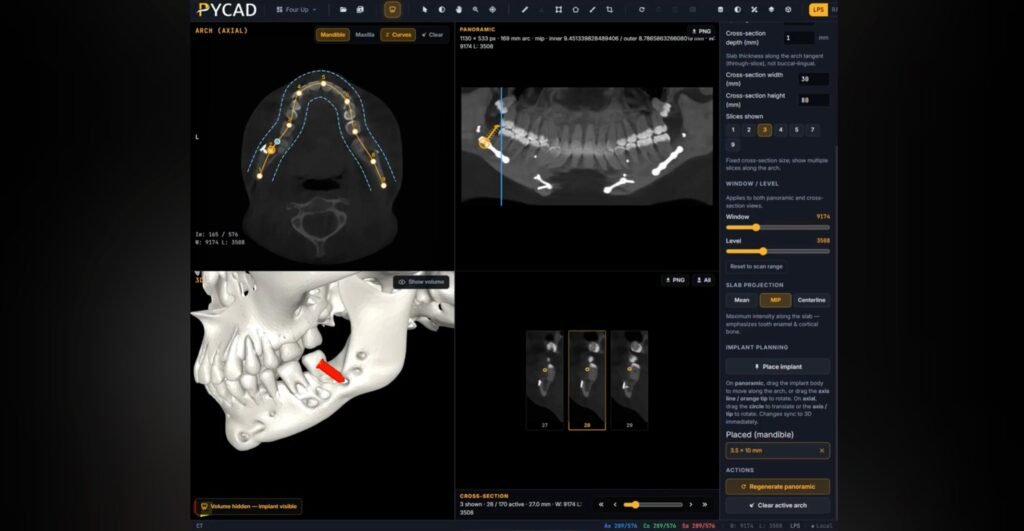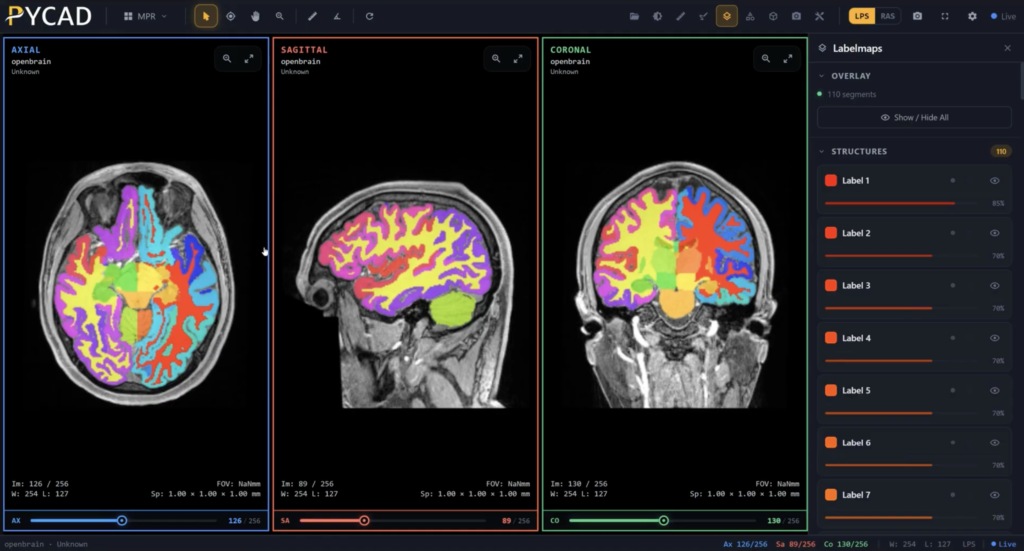
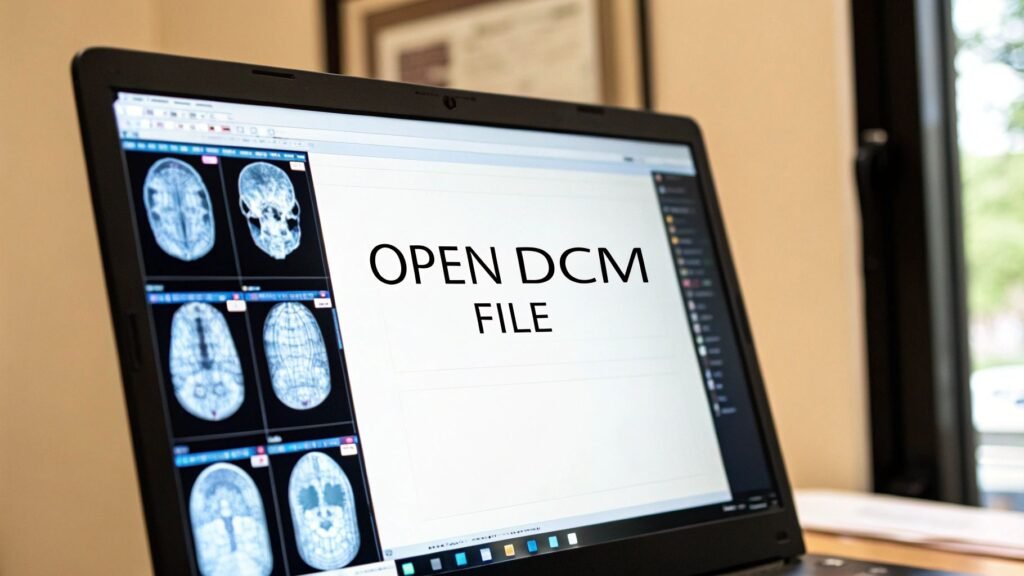
So, you have a .dcm file on your Windows machine and need to open it. The first thing to know is that your standard photo viewer won't do the trick. For these complex medical images, you'll need a dedicated DICOM viewer. The fastest route is to download a free, purpose-built program like RadiAnt DICOM Viewer or MicroDicom. Just install the software, use its "Open" or "Import" function, and you'll be able to see both the medical image and all the crucial patient data that comes with it.
Before we dive into the "how," it's helpful to understand the "why." Below is a quick summary of the most common ways to open a DICOM file on Windows. This table will help you pick the right path based on your needs and technical comfort level.
Quick Methods for Opening DCM Files on Windows
| Method | Best For | Key Benefit | Technical Skill Required |
|---|---|---|---|
| Standalone Viewer | Clinicians, researchers, and students needing quick, local access. | User-friendly interface with powerful tools for immediate analysis. | Beginner |
| Web-Based Viewer | Collaborative teams and telehealth professionals. | Access from any device with a browser, no installation needed. | Beginner |
| Conversion Tools | Developers and data scientists needing images in standard formats. | Converts DICOM to formats like JPEG or PNG for other applications. | Intermediate |
| Programming Libraries | Developers building custom applications (e.g., AI/ML models). | Full programmatic control over DICOM data extraction and manipulation. | Advanced |
Each of these approaches serves a different purpose, from simple viewing to deep data integration. Now, let's explore why these specialized tools are so essential.
Why Your DCM File Won’t Open Like a Normal Image
If you've ever double-clicked a .dcm file hoping for a quick look, you've probably been met with a confusing error message. This experience highlights a core truth about medical imaging: these files are far more than simple pictures like a JPEG or PNG. A DCM file is a rich, complex data package—think of it as a digital folder holding a whole lot more than just pixels.
These files are built on the DICOM (Digital Imaging and Communications in Medicine) standard, a framework that truly revolutionized how medical images are managed and shared after its version 3.0 was finalized in 1993. Today, DICOM is the global backbone for healthcare imaging. Its adoption in electronic health records (EHRs) and archives has reached nearly 70% in developed nations, underpinning billions of medical studies every single year.
It's More Than Just Pixels
Imagine a standard photo as just a painting on a canvas. A DCM file is that same canvas, but it comes with a detailed instruction manual attached to the back. This "manual" is the metadata, and it’s packed with vital information that makes the image clinically meaningful.
Here’s a glimpse of what’s inside a typical DCM file:
- Pixel Data: This is the visual information itself—the grayscale images from an MRI, CT scan, or X-ray.
- Patient Information: Critical details like a name, patient ID, and date of birth ensure the image is always tied to the right person.
- Acquisition Parameters: Technical settings from the imaging machine, like the exposure time or the thickness of a CT slice.
- Study Details: Contextual information about the exam, including the date, time, and the name of the referring physician.
This powerful combination of image and data is exactly why you need special software. Your everyday image viewer is built to show pixels and nothing else. It simply doesn't know how to read the crucial metadata that gives a medical scan its diagnostic power. You can get a much deeper look at this unique file structure in our complete guide to the DCM file type.
The real challenge isn't just seeing the image; it's about interpreting a complete medical record. Using the wrong tool means you're only getting half the story, which is why a specialized DICOM viewer is non-negotiable for anyone working with this kind of data.
Thankfully, there are fantastic solutions out there. We at PYCAD, for instance, build custom web DICOM viewers and integrate them into medical imaging web platforms, creating secure and intuitive ways to interact with this complex data. Take a look at our portfolio to see how we’re helping to drive healthcare innovation.
Choosing the Best Free DICOM Viewer for Windows
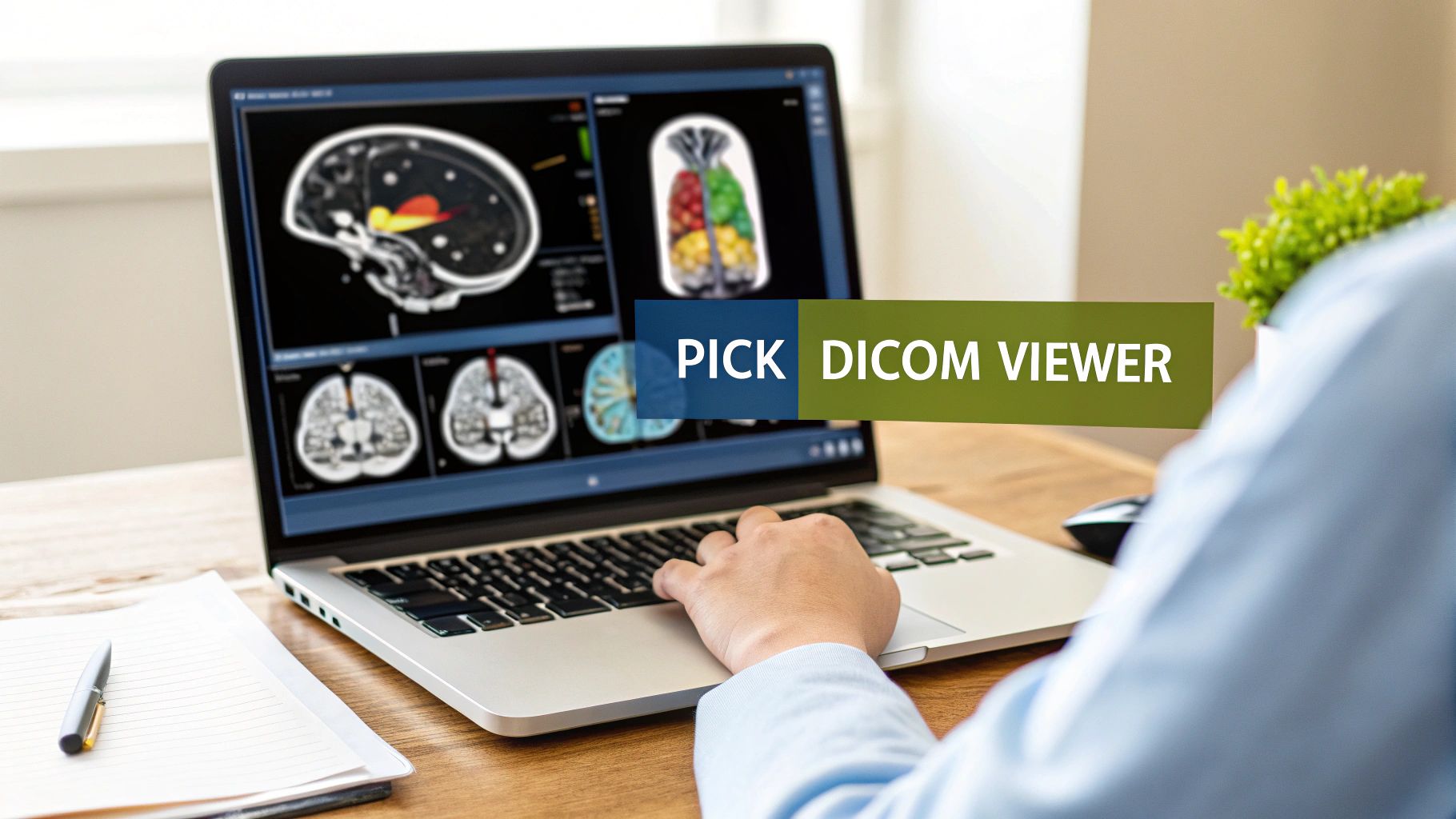
Alright, now that we've covered why you can't just double-click a .dcm file like a JPEG, we get to the fun part—picking your tool. Diving into medical imaging software can feel a bit daunting at first, but don't worry. There are some truly fantastic free options out there that give you powerful features without a complicated setup.
Your journey to mastering how to open a dcm file in windows really begins with finding software that clicks with your needs. You don’t need a massive, hospital-wide system just to review a few scans. Whether you’re a medical student studying anatomy, a researcher poring over data, or a doctor needing a quick second look, a solid free viewer is often more than enough.
Top Free Viewers: A Practical Comparison
Let's cut through the noise and focus on three of the most respected free DICOM viewers for Windows: RadiAnt, MicroDicom, and Weasis. Each has its own personality, but they all nail the fundamental job of opening and interacting with DICOM studies.
- RadiAnt DICOM Viewer: If speed is what you need, RadiAnt is your champion. It’s known for being incredibly fast and responsive, making it a dream for scrolling through huge CT or MRI studies without any lag.
- MicroDicom: This one is all about simplicity and a friendly interface. It's a perfect starting point if you're new to DICOM, giving you the essential tools you need without overwhelming you with options.
- Weasis: As a powerful open-source viewer, Weasis is a favorite in academic and research circles. It's built to be modular and can be customized, which is a huge plus for more advanced projects.
These tools are essential because they understand the language of DICOM—a language that blends pixel data with critical patient information. Your standard Windows photo viewer just sees gibberish. That’s why vendor-neutral viewers have become so crucial; in fact, over 60% of radiology departments in major markets rely on them to streamline their work and connect different systems.
A Real-World Scenario with RadiAnt
Let’s make this real. Picture this: you’ve just been sent a folder with a CT scan of an abdomen. Inside are hundreds of individual .dcm files that make up a single, cohesive study.
Your task is to quickly review the scan, tweak the contrast to get a better look at the liver, and maybe measure a small lesion. With a tool like RadiAnt, this entire process is remarkably smooth.
After a quick installation, you can literally just drag the whole folder and drop it onto the RadiAnt window. The software is smart enough to instantly recognize all those files as one series, loading them in the correct order.
From there, you just use your mouse wheel to scroll through the slices, like flipping through a digital anatomy book. Want to see the bones more clearly? Hold down the right mouse button and drag to adjust the "window" and "level," instantly shifting the view from soft tissue to bone. Measuring that lesion is as easy as selecting the length tool and clicking two points.
This is where medical imaging comes alive. It's not about looking at a static picture; it's about interacting with the data. The ability to manipulate and investigate a scan in real-time is where you find the real diagnostic insights.
If you want to go even deeper, our complete guide on the best DICOM viewers for Windows breaks down these tools and a few others in much more detail.
While these standalone viewers are incredible for individual use, many organizations are shifting toward more integrated solutions. We at PYCAD, for instance, build custom web DICOM viewers and integrate them into medical imaging web platforms, offering secure, seamless access from anywhere. You can see what this looks like in practice on our portfolio page.
Dive into Medical Imaging Directly from Your Web Browser

While powerful standalone viewers have their place, the real momentum in medical imaging is happening in the browser. Picture this: you need to pull up a patient’s full imaging study. Instead of being tethered to a specific workstation, you can access it securely from a clinic laptop, a hospital PC, or even a tablet during a remote consult.
And the best part? No software installation required.
This is the freedom that modern web-based DICOM viewers bring to the table. They work by hosting the complex imaging data on secure cloud servers, letting you log in from any standard web browser to view and manipulate studies instantly. Your local Windows machine is just a gateway.
This shift completely changes the game for healthcare organizations with multiple sites or research teams scattered across the country. It cuts through the red tape of software updates and compatibility issues, guaranteeing everyone is always on the same page, using the exact same tools.
Security and Collaboration Come First
Naturally, the moment you talk about moving Protected Health Information (PHI) to the cloud, security has to be ironclad. Any web-based viewer worth its salt operates within a strict, HIPAA-compliant framework. We're talking end-to-end data encryption, granular access controls, and comprehensive audit trails that log every single interaction with the data.
With that secure foundation in place, the collaborative potential is immense.
- Real-Time Consults: Specialists can jump into the same study and review scans together from anywhere.
- Empowered Patients: Secure patient portals can finally give individuals direct access to their own imaging records.
- Frictionless Referrals: Forget about burning CDs. Sharing studies between facilities becomes a simple, secure digital transfer.
When you're dealing with massive medical images in a browser, performance is key. Understanding the principles of optimizing images for web performance is crucial for ensuring a smooth, responsive experience, even with the most complex datasets.
The true magic of a web viewer isn’t just about convenience—it’s about connecting people and data. It breaks down the old silos, turning medical imaging into a dynamic, collaborative ecosystem that’s accessible from anywhere.
Here at PYCAD, this is our specialty. We build custom web DICOM viewers and integrate them into medical imaging web platforms. Our goal is to give healthcare providers the secure, flexible tools they need to excel. You can see some of our solutions in action on our portfolio page.
Taking Control with Code: Working with DICOM Data Programmatically
Ready to go beyond simply viewing images? A whole new world opens up when you start interacting with DICOM data through code. Moving past the graphical interface lets you automate tasks, analyze massive datasets, and build custom tools that truly push the boundaries of what's possible with medical imaging. This is where you evolve from being a consumer of medical data to a creator of new insights.
If you've ever found yourself wondering how to open a dcm file in windows without a standard viewer, programming is your answer. It gives you the power to script solutions for complex problems, like de-identifying thousands of patient scans for a research study or extracting specific metadata tags from an entire hospital archive. The right library can turn hours of tedious manual work into a script that gets the job done in minutes.
Unleash Your Data with Python and Pydicom
One of the most powerful and accessible entry points is Python, specifically with the fantastic open-source pydicom library. For developers and researchers, this library is a game-changer, making it incredibly straightforward to read, modify, and even write DICOM files from scratch. You can dive deep into the metadata header, manipulate the pixel data for analysis, or build entirely new DICOM objects.
Imagine writing a short script to handle tasks like these:
- Batch Anonymization: Systematically strip all Protected Health Information (PHI) from a huge dataset to prepare it for research, safeguarding patient privacy.
- Targeted Data Extraction: Automatically pull specific values, like
SliceThicknessorRepetitionTime, from thousands of files and dump them into a spreadsheet for statistical analysis. - Custom Image Modification: Apply your own image processing filters or algorithms directly to the raw pixel data before saving the result as a new, modified DCM file.
The real magic happens when you realize a few lines of code can unlock the stories hidden within medical scans. This isn't just data processing—it's building the foundation for the next generation of diagnostic tools and research breakthroughs.
Command-Line Power with DCMTK
For those who love the raw efficiency of the command line, the DCMTK (DICOM Toolkit) is an absolutely essential collection of utilities. It's a robust, battle-tested toolset perfect for batch processing and integrating into larger, more complex workflows.
You can use simple commands to query studies from a PACS, move files across a network, or convert DICOM images to other formats without ever needing a graphical application. This hands-on approach is perfect for automating backend processes in any medical imaging environment. If you want a deeper dive into the fundamentals, our guide on how to read DICOM files programmatically is a fantastic place to start.
At PYCAD, we live and breathe this innovative spirit every day. We build custom web DICOM viewers and integrate them into medical imaging web platforms that turn complex data into actionable insights. You can see some of our work on our portfolio page. For any entrepreneurs out there, a guide on starting a healthcare startup can offer some great perspective on the business side of handling sensitive medical data.
Unlocking Stubborn DCM Files: Your Troubleshooting Guide
So you have the right software, but that DCM file just won't cooperate. Don't worry, you've hit a rite of passage for anyone working with medical images. This is totally normal. The very thing that makes DICOM so robust—its incredible complexity—is also what can make it a little finicky compared to a simple JPEG.
Think of these hiccups not as roadblocks, but as puzzles. The key to solving them often lies in the error message itself. When you’re wrestling with how to open a dcm file in windows and hit a wall, that cryptic pop-up is your first and best clue.
"Unsupported Transfer Syntax": The Classic DICOM Conundrum
This one is the most common gremlin in the machine. A "Transfer Syntax" is just the DICOM way of saying "how the image data is compressed." One scanner might compress a CT scan using one method, while an ultrasound machine uses a completely different one.
If your DICOM viewer doesn't understand that specific type of compression, it essentially throws its hands up and gives you this error. It can't "read the language" of the file.
- The Go-To Solution: The easiest first step? Just try a different viewer. A more robust, modern application like RadiAnt DICOM Viewer or Weasis comes packed with a huge library of codecs, often solving the problem instantly.
- The Power User's Fix: If you're comfortable with command-line tools, you can use something like the DCMTK to actually change the file's compression. You can decompress it into a more universal format that virtually any viewer on the planet can read.
The Mystery of Corrupted or Incomplete Files
Ever tried to open a file that seemed to download completely, only to find it's unreadable? That’s a classic sign of data corruption. It often happens during a shaky network transfer or when copying from an old disc or USB drive.
Even a tiny piece of missing data can make a complex study, like a multi-slice MRI, completely unusable. The viewer simply can't put the puzzle back together if a critical piece is gone.
Your first move should always be to get a fresh copy from the source. Re-download it from the PACS or ask for it to be sent again. While some niche repair tools exist, they are a last resort and rarely successful.
Remember, the sheer size of these files can be a challenge. Medical imaging makes up roughly 30% of all data stored in healthcare systems, with a single study ranging from a 5 MB X-ray to a multi-gigabyte pathology scan. You can get a better sense of why by exploring the DICOM format's intricate structure.
Common DICOM Errors and Their Solutions
When you're in the thick of it, a quick reference can be a lifesaver. Here are some of the most frequent issues you'll encounter and how to tackle them head-on.
| Error Message / Symptom | Potential Cause | How to Fix It |
|---|---|---|
| "Unsupported Transfer Syntax" | The viewer lacks the specific codec needed to decompress the image data. | Try a more comprehensive viewer (like RadiAnt or Weasis) or use a tool like DCMTK to convert the file to a common, uncompressed syntax (e.g., Implicit VR Little Endian). |
| "File is not a DICOM file" or "Invalid Header" | The file is genuinely not a DICOM, is severely corrupted, or lacks the necessary DICOM preamble and prefix. | Verify the file source. If you're certain it's a DICOM, try to re-download or re-copy it. The file header might be irreparably damaged. |
| Image appears black, white, or distorted | Incorrect Window/Level (W/L) values are being applied, or the viewer isn't reading them correctly from the DICOM tags. | Manually adjust the Window/Level settings in your viewer. Most viewers have a tool for this (often a right-click and drag). |
| Only one image from a series is showing | The viewer is not correctly grouping the images by their Series Instance UID. It's treating each slice as a separate study. | Check the viewer's settings for "stacking" or "series navigation." A good viewer should automatically group images from the same series. |
| Slow loading or viewer freezes | The DICOM file is extremely large (e.g., a multi-gigabyte whole-slide image) and your system lacks sufficient RAM or processing power. | Close other demanding applications. If it's a recurring issue, consider a PC with more RAM or use a viewer optimized for large datasets. |
This table covers the usual suspects, but every so often you'll run into a truly unique problem. That's just the nature of working with such a diverse and powerful standard.
We at PYCAD, build custom web DICOM viewers and integrate them into medical imaging web platforms, engineering them for maximum compatibility and blazing-fast performance. Our platforms are designed to handle the most demanding datasets without breaking a sweat.
See how we've solved these problems for others by checking out our project portfolio.
Have Questions About DCM Files? You're Not Alone.
Jumping into medical imaging can feel a little overwhelming, and it's natural to have questions. This last section is all about tackling the most common things people ask when dealing with .dcm files. My hope is that it clears things up, gives you a boost of confidence, and gets you excited to dig into the incredible data these files contain.
If you ever run into trouble, this little flowchart can be a lifesaver. It helps you quickly figure out if you're dealing with a corrupted download or a more technical syntax problem.
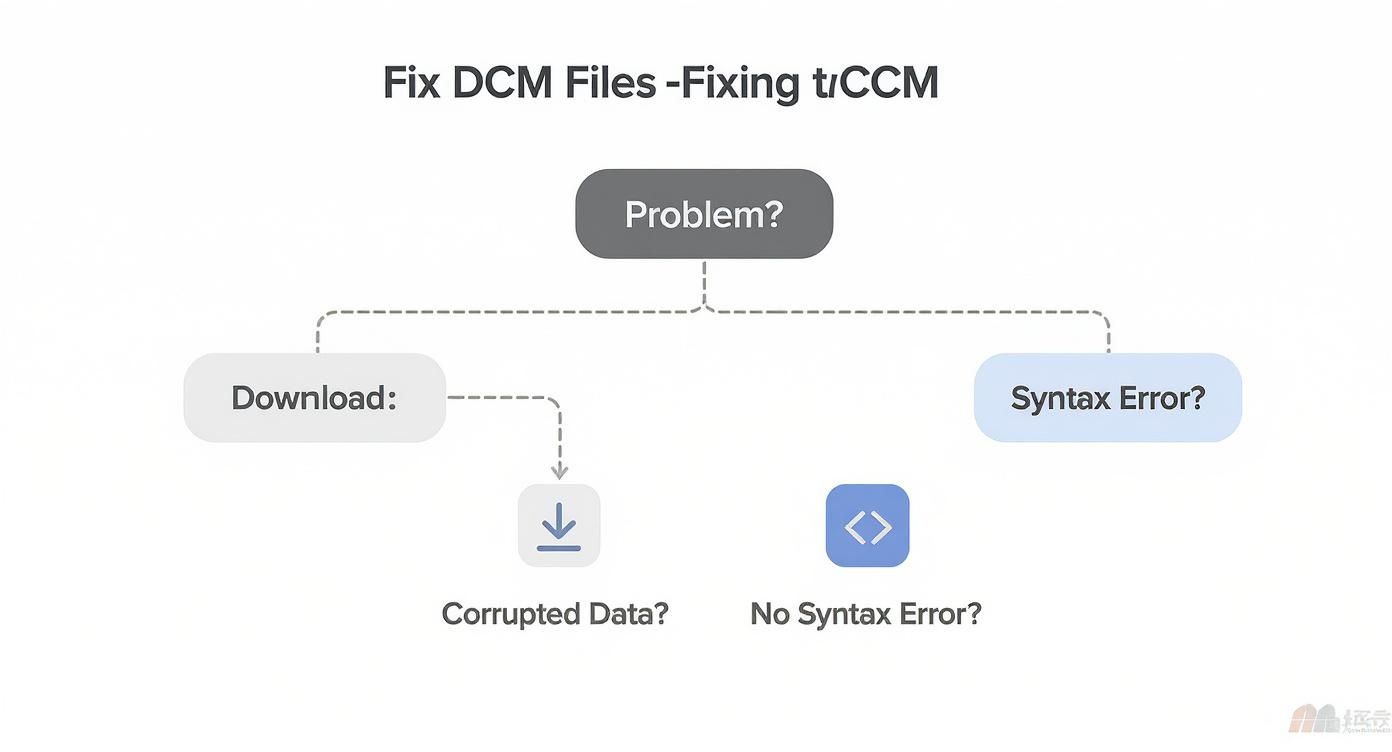
Before you dive into complex fixes, always check the basics. More often than not, a simple re-download from the source is all you need to fix a corrupted file.
Can I Just Open a DCM File in Photoshop?
It’s a common question, but the short answer is no, not for any real diagnostic work. While a program like Photoshop might technically pry open some .dcm files, it’s like using a screwdriver to hammer a nail. It just isn't the right tool for the job.
A DICOM file isn't just a flat picture; it's a rich data package. Standard image editors and viewers like the Windows Photos app can't read all the critical metadata—patient information, machine settings, and acquisition details. Even more importantly, they lack the specialized tools like window/level adjustments or multi-slice navigation that are essential for medical analysis. Always stick with a dedicated DICOM viewer.
Is Emailing DCM Files a Good Idea?
Definitely not. Emailing .dcm files is a huge security risk and something you should avoid at all costs. These files are packed with Protected Health Information (PHI), and your standard email inbox is not a secure, encrypted, or HIPAA-compliant way to send them.
Pushing PHI through an unsecure channel can open the door to serious data breaches and has major legal implications. When you need to share medical images, the only responsible way is through a secure, purpose-built platform, like a PACS or a dedicated web viewer portal.
"The moment PHI is involved, security ceases to be a feature and becomes the foundation. Unencrypted email is like sending a postcard with a medical diagnosis written on the back—it's simply not a viable option in a professional context."
We at PYCAD build these secure environments from the ground up. We create custom web DICOM viewers and integrate them into medical imaging web platforms where patient data integrity is always the number one priority. You can see our work on our portfolio page.
What's the Difference Between One DCM File and a Whole Study?
Think of it this way: a single .dcm file is like one page in a book. It might be a single X-ray image or one cross-sectional slice from a CT scan. A DICOM "Study" or "Series," however, is the entire book—a complete collection of all the individual images that make up a full examination.
For example, a complete chest CT scan could be made up of hundreds of individual .dcm files. A good DICOM viewer is smart enough to group all those files together, letting you scroll through them as one seamless, 3D volume. This is why you’ll often get a whole folder of files instead of just one.
Do I Need a Supercomputer to Open These Files?
It really depends on what you're looking at. For simple 2D images like a basic X-ray or a single-slice CT, just about any modern computer will do the trick without breaking a sweat.
But if you’re working with large, multi-slice studies or diving into advanced visualizations like 3D rendering, a more powerful machine will make your life a lot easier. If you're looking to upgrade, focus on these components:
- Plenty of RAM: Aim for 16GB or more to keep things running smoothly.
- A Dedicated Graphics Card (GPU): This makes a massive difference in accelerating rendering and image manipulation.
- A Solid-State Drive (SSD): Using an SSD will dramatically cut down the loading times for those huge datasets.
We at PYCAD, are in the business of building powerful tools that bring medical imaging data to life. We build custom web DICOM viewers and integrate them into medical imaging web platforms. See what's possible by exploring our work on our portfolio page.