Cracking open a DICOM file for the first time is often the moment you realize you're not just looking at a picture. It's a gateway into the intricate world of medical imaging, and thankfully, it's easier to get started than most people think.
At its core, a DICOM file is a powerful package. It bundles the visual data—that X-ray or CT slice—with a treasure trove of metadata. This isn't just basic info; it's everything from the patient's details to the precise settings used on the imaging machine.
This incredible standard didn't just appear overnight. It was born from a collaboration between the American College of Radiology (ACR) and the National Electrical Manufacturers Association (NEMA) way back in 1985. The game-changer came in 1993 with DICOM 3.0, which introduced the networking capabilities that finally allowed different systems to talk to each other. That update is the reason we have the interoperable medical imaging ecosystem we see today.
Choosing Your DICOM Viewing Method
So, how do you actually open one of these files? It really boils down to what you're trying to accomplish. Here’s a quick comparison to help you choose the right path for your needs.
| Method | Best For | Key Advantage | Considerations |
|---|---|---|---|
| Desktop Viewer | Clinicians, researchers, or anyone needing robust offline analysis tools. | Powerful, feature-rich viewing and analysis without an internet connection. | Requires software installation and is tied to a specific machine. |
| Web-Based Viewer | Collaborative teams, remote consultations, and platform integration. | Access from anywhere, on any device. Perfect for sharing and teamwork. | Dependent on internet connectivity and server performance. |
| Programmatic Library | Developers, data scientists, and AI engineers building automated workflows. | Unmatched flexibility to read, write, and manipulate DICOM data at scale. | Requires coding knowledge (e.g., Python with pydicom). |
Ultimately, the best method is the one that fits your workflow. A radiologist deep-diving into a complex scan has very different needs than a developer building a new AI model for image segmentation.
Let's break down the main approaches you can take.
Your Three Main Paths
You've got a few solid options, and each one shines in different scenarios.
-
Desktop DICOM Viewers: Think of these as your dedicated workhorses. You install them directly on your Mac or PC, and they provide a powerful, offline environment for in-depth analysis. They're the go-to for many clinicians and researchers.
-
Web-Based DICOM Viewers: These are all about accessibility and collaboration. No installation needed—just a web browser. This approach is perfect for sharing studies with colleagues or accessing images on the go. This is where we at PYCAD live and breathe; we specialize in building custom web viewers and integrating them seamlessly into larger medical platforms.
-
Programmatic Libraries: For the coders and data scientists out there, this is where the real magic happens. Using a library like
pydicomin Python, you can script anything you can imagine—from extracting specific metadata across thousands of studies to prepping datasets for machine learning.
The right tool depends entirely on your goal. Are you diagnosing, sharing, or processing? Answering that one question will immediately point you in the right direction.
No matter which path you choose, learning to navigate DICOM files opens up a world of possibilities. It’s the foundational skill for anyone serious about working with medical images. For a much deeper look into the anatomy of the DICOM standard itself, check out our complete guide on what is DICOM.
Mastering Desktop DICOM Viewers for Daily Use
For anyone working hands-on with medical imaging, a solid desktop DICOM viewer is your command center. Think of it as your digital light box, but infinitely more powerful. These are standalone applications you install directly on your computer, giving you a fast, feature-rich, and totally offline environment for digging into scans.
This local-first approach is exactly why desktop viewers are indispensable for radiologists, researchers, and clinicians. When you need to analyze a complex study without lag or internet dependency, nothing beats having the software right there on your machine.
Let's paint a picture. A radiologist is reviewing a multi-series CT scan of a patient's chest. With a viewer like Horos or RadiAnt, they aren't just flipping through images. They're fluidly scrolling through hundreds of slices, instantly generating sagittal and coronal views with multi-planar reconstruction (MPR), and even building a 3D model to pinpoint the exact location of a suspicious nodule. All of this happens in seconds, with tools for measurement, annotation, and windowing right at their fingertips. That’s the real power of a dedicated desktop application.
Choosing the Right Tool for Your Workflow
Finding the right viewer feels a lot like a craftsman choosing the right tool—it has to fit your specific needs and feel good in your hands. Thankfully, the market is full of fantastic options, from powerful open-source projects to polished commercial software.
On macOS, you’ll constantly hear about Horos and its commercial predecessor, OsiriX. For Windows users, RadiAnt DICOM Viewer is a crowd favorite known for its blistering speed. And for those who need flexibility across different operating systems, open-source heroes like 3D Slicer and MicroDicom have built dedicated followings worldwide.
To narrow down your choices, ask yourself a few key questions:
- What's my OS? Make sure the viewer runs natively on your Windows, macOS, or Linux setup.
- What tools are non-negotiable? Do you need advanced functions like 3D rendering, PET-CT fusion, or specific orthopedic measurements?
- How big are my studies? Performance is key. A good viewer won't choke on a massive MRI study with thousands of images.
- Is the interface intuitive? The best tool is one you actually enjoy using. A clean, customizable workspace makes all the difference.
If you're primarily on Windows, we've put together a detailed guide on the best Windows DICOM viewer options that’s worth a read.
This diagram shows where desktop viewers fit into the broader ecosystem of medical imaging access. They are the foundational first step for many workflows.
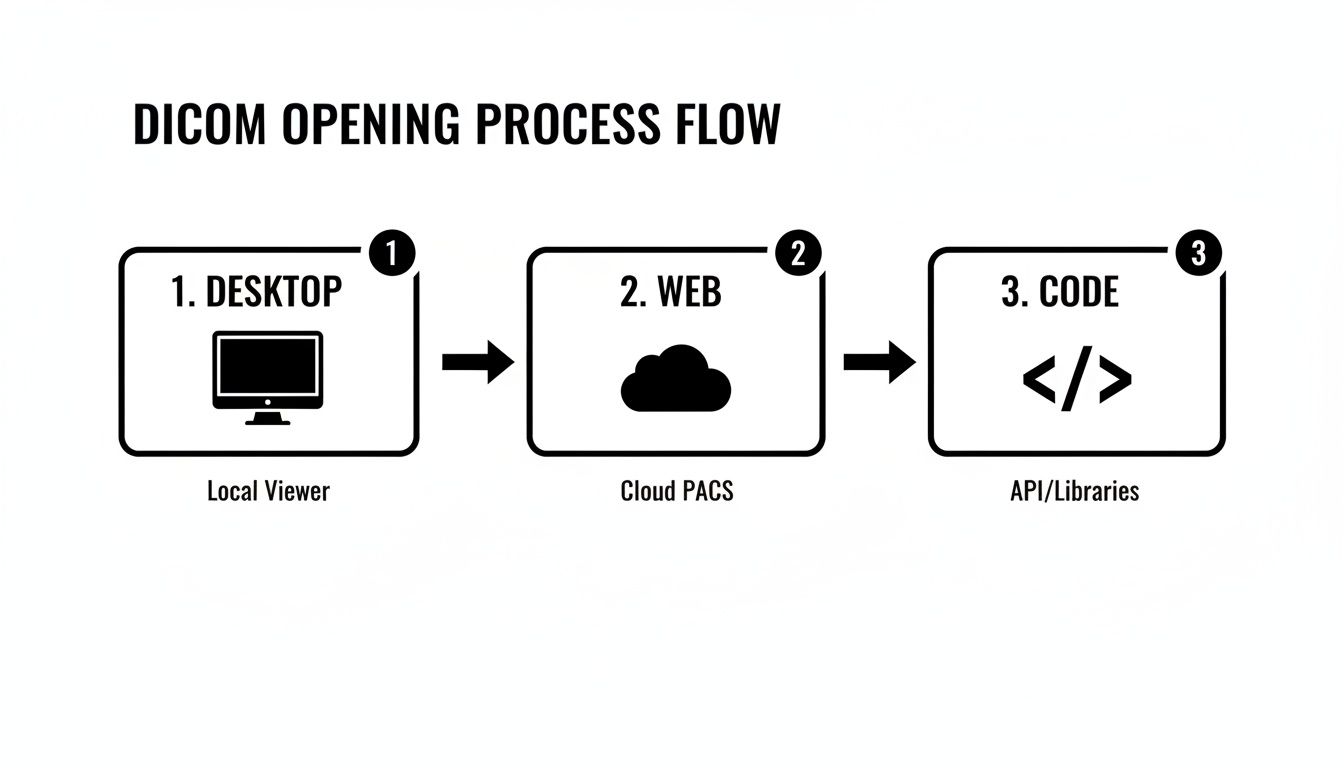
Whether you're starting on your desktop, pulling from a cloud PACS, or using code libraries, each path serves a unique and vital purpose.
Popular Desktop DICOM Viewers Compared
With so many options, a side-by-side comparison can make the decision much easier. This table breaks down some of the most popular free and commercial viewers to help you find the perfect match for your operating system and daily tasks.
| Viewer Name | Operating System | Key Features | Ideal User |
|---|---|---|---|
| Horos | macOS | Open-source, plugin architecture, 3D rendering, MPR, MIP, PET-CT fusion | Mac-based radiologists, researchers, and students needing advanced, free tools. |
| RadiAnt DICOM Viewer | Windows | Extremely fast, intuitive UI, MPR/MIP, multi-touch support | Clinicians and radiologists on Windows who prioritize speed and ease of use. |
| 3D Slicer | Windows, macOS, Linux | Advanced segmentation, registration, and analysis tools for research | Medical researchers and scientists needing powerful image computing capabilities. |
| MicroDicom | Windows | Lightweight, simple interface, basic measurement and annotation tools | Students, patients, or professionals needing a no-frills, easy-to-use viewer. |
| OsiriX Lite | macOS | FDA-cleared (paid versions), robust feature set, well-established | Medical professionals in clinical settings who need a certified and supported viewer. |
Ultimately, the best way to choose is to download a few and take them for a spin. See which one feels most natural for your specific workflow.
Practical Tips for Power Users
True mastery of any tool isn't about knowing every single feature—it's about bending the tool to your will. It's about making it an extension of your own mind.
Consider a medical researcher cleaning a dataset for a machine learning project. Their first, critical step is anonymization. A good desktop viewer isn't just for viewing; it's a workstation. With a few clicks in a tool like Horos, they can batch-process an entire study, stripping or pseudonymizing DICOM tags like PatientName and PatientID. This isn't just a convenience; it's a requirement for ethical research and HIPAA compliance.
The secret to becoming a power user is customizing your workspace. Set up keyboard shortcuts for your most-used tools. Arrange the toolbars to match how you think. Shaving seconds off repetitive actions adds up to hours of saved time and less mental fatigue over the long run.
While these local applications are incredible, the world of medical imaging is becoming more collaborative and connected. For teams that need to share, annotate, and analyze studies from anywhere, web-based platforms are the future. That’s where we come in. At PYCAD, we specialize in building custom web DICOM viewers and integrating them into modern medical imaging platforms, bringing the power of advanced visualization right into the browser. You can check out our portfolio to see what we build.
The Future Is Browser-Based Web DICOM Viewers
Let’s be honest: the limitations of desktop software become painfully clear the moment you need to share a study with a colleague across the country or quickly pull up a scan on a tablet. The future of medical imaging isn’t tethered to a single machine—it lives in the browser, accessible from anywhere, at any time.
This shift toward web-based DICOM viewers is all about breaking down barriers and making medical data more fluid, collaborative, and immediate.
Imagine a world where you’re no longer juggling software installations, worrying about OS compatibility, or being chained to one specific workstation. With a web viewer, opening a DICOM file becomes as simple as clicking a secure link. This unlocks incredible new workflows, from teleradiology consults where specialists review images in real-time to educational platforms where students study complex cases on their own laptops.
This is exactly where we at PYCAD live and breathe. We at PYCAD, build custom web DICOM viewers and integrate them into medical imaging web platforms, creating tools that aren’t just powerful, but are genuinely intuitive for clinical use.
Why Browser Access Is a Game Changer
Moving DICOM viewing to the web is more than a convenience; it's a fundamental change in how medical professionals interact with imaging data. It’s about fostering collaboration and efficiency on a global scale.
The single biggest advantage is centralized data access. When studies are managed on a secure server, everyone sees the same, single version of the truth. This completely eliminates the chaos of tracking multiple file versions and ensures that annotations made by one clinician are instantly visible to others. No more confusion.
Here are some of the core benefits driving this shift:
- Zero-Footprint Viewing: Users don't need to install a single piece of software. This is a massive relief for IT departments and makes deployment across an entire organization almost effortless.
- Platform Independence: A web viewer just works—on any device with a modern browser. Windows, macOS, Linux, tablets, even smartphones. This is crucial for today's mobile healthcare workforce.
- Seamless Collaboration: Specialists from different hospitals or even different countries can review and discuss a case at the same time, right inside the viewer. It's a direct path to accelerating diagnostic timelines.
- Effortless Integration: Web viewers are designed to connect with other critical systems, like a Picture Archiving and Communication System (PACS) or an Electronic Health Record (EHR), creating a truly unified patient overview.
Customization Beyond Off-the-Shelf Solutions
While plenty of web viewers offer standard features, their real power is unlocked when you build a solution that perfectly matches a specific clinical need. This is where a custom-built viewer delivers value that an off-the-shelf product simply can't.
Think about it: a research institution might need a viewer that integrates specialized AI algorithms to automatically segment tumors and calculate their volume. A standard viewer won't have that. At PYCAD, we design and build these exact types of custom solutions, embedding advanced functionality directly into the viewing experience.
The goal of a custom web viewer is not just to display an image; it's to create an interactive workspace that actively assists the user. It should anticipate their needs and bring the most relevant tools and data directly to their fingertips.
Here’s a glimpse at a custom platform we developed, showing how a web DICOM viewer fits into a broader medical data environment.
As you can see, the interface is clean and intuitive. The DICOM viewer is the star of the show, but it’s supported by patient data and analysis tools right alongside it.
This level of integration transforms the viewer from a simple tool into the very core of a clinical workflow. To see more examples of how custom development can elevate a medical imaging platform, we invite you to explore the work in our portfolio.
The move to browser-based solutions isn't just a trend; it's the natural evolution of medical imaging. It promises a more connected, efficient, and intelligent future for healthcare professionals everywhere. By embracing this technology, organizations can empower their teams to deliver better, faster patient care.
Unlocking DICOM Files with Code
Graphical viewers are fantastic, but if you're a developer, data scientist, or researcher, you'll eventually hit a ceiling. True power—the kind that lets you automate, analyze at scale, and build custom applications—comes from interacting with data directly through code. This is where you unlock the incredible potential hidden inside every single DICOM file.
Imagine writing a script that sifts through an entire hospital archive overnight, pulling out specific imaging parameters to identify candidates for a clinical trial. Or picture building a workflow that automatically anonymizes thousands of patient studies, making them ethically ready for your next machine learning model. This level of control and scale is only possible when you learn to open and manipulate DICOM files programmatically.
For anyone in the Python world, that journey almost always begins with pydicom. It’s a powerful and refreshingly intuitive library that has become the gold standard for working with DICOM data, turning the complex binary structure of a file into a clean, accessible Python object.
Your First Steps with Python and Pydicom
You'll be surprised at how easy it is to get started. Once pydicom is installed, it only takes a few lines of code to read a DICOM file and start exploring its contents. You're not just getting the image; you're getting instant access to the rich metadata that gives it context.
A DICOM file is more than just pixels. It's a package containing both the image data and a detailed header full of attributes called tags—the DICOM standard actually defines over 2,000 of them. So, opening a DICOM file means parsing this complex dataset, understanding its Transfer Syntax, and correctly interpreting all those tags. Libraries like pydicom do the heavy lifting for you, exposing the data so you can focus on building something amazing.
For a quick peek, this screenshot from the official pydicom documentation shows just how simple it is to load a file and print its entire header.
As you can see, the library reads the file and presents its metadata in a clean, human-readable format. This makes it incredibly easy to see and grab elements like PatientName or StudyDate.
This simple act of reading a file's metadata is the launchpad for countless advanced applications. For example, you could:
- Batch Process Files: Loop through a directory to read and modify thousands of files in one go.
- Filter Datasets: Write a script to find all studies from a specific modality (like "CT") or from a particular manufacturer's scanner.
- Anonymize Data: Systematically remove or replace personally identifiable information (PII) from DICOM tags to prepare data for research.
Beyond Python: The Power of Command-Line Tools
While Python gives you incredible flexibility, sometimes you just need a quick, surgical tool for a specific job. That's where command-line utilities from toolkits like DCMTK (DICOM Toolkit) are invaluable. They offer a suite of powerful commands that let you inspect, modify, and convert DICOM files right from your terminal.
With a single command, you can dump the entire header of a DICOM file to your screen, convert an image from one Transfer Syntax to another, or even send a study to a PACS node. These tools are the Swiss Army knife for anyone working with DICOM data on a systems level.
This programmatic approach is the bedrock of modern medical imaging solutions. Here at PYCAD, we live and breathe these principles. When we at PYCAD, build custom web DICOM viewers and integrate them into medical imaging web platforms, our backend services depend on these techniques to handle data efficiently and securely. You can explore our portfolio to see the sophisticated platforms built on this very foundation.
For a more detailed walkthrough, don't miss our guide on how to read DICOM files programmatically.
Solving Common DICOM Opening Errors
Sooner or later, it happens to everyone who works with medical imaging. You hit a wall—a stubborn DICOM file that just refuses to open. It’s a moment of pure frustration, but it’s also an opportunity to deepen your understanding and become a real problem-solver.
These errors aren’t dead ends; they’re puzzles waiting to be solved.
That first vague "Invalid DICOM" message is your starting clue, not the final diagnosis. It often points to a deeper issue within the file's structure or metadata that your particular viewer can't interpret. You've probably seen it before: a file opens perfectly in one piece of software but fails completely in another. Why? Because each viewer has its own level of strictness in enforcing the DICOM standard. Some are more forgiving of minor deviations, while others demand perfect compliance.
Diagnosing the Root Cause
When a file fails to load, resist the urge to just try another viewer right away. Instead, put on your detective hat. The most common culprits behind opening errors usually fall into a few key categories.
Your investigation should zero in on these prime suspects:
- Corrupted File: This is the simplest explanation. The file might have been damaged during transfer or storage.
- Missing Preamble: A valid DICOM file should start with a 128-byte preamble followed by the "DICM" prefix. If this is missing or altered, many viewers will reject the file outright.
- Transfer Syntax Mismatch: The file could be compressed using a method your viewer doesn't support, like JPEG 2000. The Transfer Syntax tag (0002,0010) is what tells the viewer how the pixel data is encoded.
- Non-Standard Private Tags: Manufacturers sometimes include custom, or private, tags. If not implemented correctly, these can confuse viewers that don’t know how to interpret them.
Knowing these possibilities transforms a frustrating error into a clear, actionable diagnostic path.
Uncovering Clues in the DICOM Header
Your most powerful troubleshooting tool is the DICOM header itself. The metadata within holds the secrets to why a file might be misbehaving. Using a tool that can inspect the raw tags—even if it can't display the image—is an absolute game-changer.
For instance, checking the Transfer Syntax UID (0002,0010) is a classic first step. If you see a value like 1.2.840.10008.1.2.4.91, you know the pixel data is JPEG 2000 compressed. If your viewer doesn't support that syntax, you've found your problem.
Think of yourself as a digital archaeologist. You are carefully examining the artifacts (the DICOM tags) to reconstruct the story of how this file was created and why it's failing. Each tag is a piece of evidence.
This diagnostic work is fundamental to building robust medical imaging systems. Here at PYCAD, when we at PYCAD, build custom web DICOM viewers and integrate them into medical imaging web platforms, we engineer them to handle these edge cases gracefully. Our systems are designed to provide clear feedback and logging when encountering problematic files, turning a user's frustration into a solvable issue. To see the resilient platforms we've developed, you can explore our portfolio.
Practical Steps for a Solution
Once you have a good hypothesis, you can take concrete steps to get that file open.
- For Corrupted Files: The first thing to try is simply re-downloading the file from its original source.
- For Transfer Syntax Issues: Use a conversion utility, like those found in the DCMTK toolkit, to change the file to a more widely supported syntax, such as Explicit VR Little Endian.
- For Invalid Metadata: Sometimes you have to get your hands dirty. Use a DICOM editor to manually inspect and correct incorrect or missing tags that are critical for display, like
Rows,Columns, orPhotometric Interpretation.
Mastering these troubleshooting techniques is a defining skill. It elevates you from someone who simply uses DICOM files to someone who truly understands them, empowering you to overcome any obstacle that stands between you and the critical data within.
Your Questions on Opening DICOM Files Answered
Diving into the world of medical imaging can feel a bit like learning a new language. You'll inevitably run into specific, practical questions. Whether you're a clinician trying to view a study, a developer building a new tool, or a researcher analyzing data, getting clear answers is the key to moving forward with confidence.
Let's walk through some of the most common questions that pop up when you're figuring out how to open a DICOM file. Think of this as your personal cheat sheet for clearing those initial hurdles.
Can I Open a DICOM File in Photoshop?
Technically, yes, but it's not something I'd ever recommend for clinical work. Adobe Photoshop can open a .dcm file, but it treats it like any other static image. This is fine if you're just trying to create a basic illustration for a presentation, but that's where its usefulness ends.
The moment you open a DICOM in Photoshop, you lose everything that makes it medically valuable. All the crucial metadata and interactive capabilities are stripped away. You won't be able to:
- Perform windowing to adjust brightness and contrast for different tissues.
- Create multi-planar reconstructions (MPR) to view the anatomy from different angles.
- Access the patient and study metadata embedded in the file.
- Make clinically accurate measurements.
For any serious diagnostic or analytical task, a dedicated DICOM viewer is the only way to go. We at PYCAD specialize in this area, feel free to check out our portfolio.
What Is the Difference Between a DICOM File and a JPEG?
This is a fantastic and absolutely fundamental question. A JPEG is simply a compressed picture—it's just pixels. A DICOM file, on the other hand, is a complete and complex data package.
Think of it this way: a JPEG is a photograph, but a DICOM is a patient's entire medical imaging chart. It contains not only the image data but also an incredibly detailed header with over 4,000 possible metadata tags. This includes everything from the patient's name and ID to the precise scanner settings used during the acquisition.
Opening a DICOM file isn't just about seeing an image; it's about accessing the entire story behind that image.
Is DICOM an Image or a Protocol?
It's actually both, which is what makes it so powerful. The name itself, Digital Imaging and Communications in Medicine, perfectly explains its dual identity.
At its heart, DICOM defines two critical things:
- A File Format: It provides a standardized structure for storing medical images and all their related metadata in a
.dcmfile. - A Network Protocol: It sets the rules for how medical imaging devices—like scanners, PACS servers, and viewing workstations—talk to each other. This is what enables actions like sending and receiving studies across a hospital network.
The real genius of DICOM is how it standardizes both the data itself and the way that data is shared. This seamless integration is what allows a CT scanner from one manufacturer to send an image to a viewing station from another without a single hiccup.
Why Do Some DICOM Files Look Black?
Ah, the classic "black screen" problem. This is easily one of the most common snags for anyone new to DICOM, and I can assure you, it's almost never an issue with the file itself. The culprit is almost always the windowing settings.
Medical images, especially from modalities like CT, contain a massive range of pixel intensity values—far more than a standard computer monitor can display at once. The windowing function in a DICOM viewer lets you focus on a specific slice of that data.
If the default window level and width are set for bone, for example, the soft tissue will look completely black. A quick adjustment of the windowing settings will bring the hidden details of the image into view. This is a core reason why specialized viewers are non-negotiable for medical imaging.
DICOM FAQ
Have more questions? You're not alone. Here are quick answers to a few other common queries we hear all the time.
| Question | Answer |
|---|---|
| What does PACS stand for? | PACS stands for Picture Archiving and Communication System. It's the central hub in a hospital for storing, retrieving, managing, and distributing medical images. |
| Are all .dcm files the same? | No. While they follow the same standard, DICOM files vary greatly depending on the imaging modality (CT, MRI, X-ray), the manufacturer, and even the specific study. |
| Is it safe to email DICOM files? | Generally, no. Standard email is not secure and sending DICOM files this way can violate patient privacy regulations like HIPAA. Always use secure, encrypted transfer methods. |
| Can I view DICOMs on my phone? | Yes, there are many mobile DICOM viewing apps available for both iOS and Android. They are great for quick reviews but may not be approved for primary diagnosis. |
Hopefully, this clears up some of the initial confusion and empowers you to work with DICOM data more effectively.
At PYCAD, we live and breathe these kinds of challenges. We specialize in building custom web DICOM viewers and integrating them into sophisticated medical imaging platforms. Our goal is to create solutions that are intuitive, powerful, and absolutely secure for the healthcare industry.
We love transforming complex medical data into clear, actionable insights. To see how we make it happen, we invite you to explore our work.
Discover what's possible by viewing our portfolio.