
An STL is a triangle mesh: geometry only, no color, no material, no units. ASCII is readable text (huge). Binary is what you actually want. The format is from 1987 (3D Systems / stereolithography).
This page is how to open and inspect one. Medical meshes start in 3D Slicer, then MeshLab, then Blender if you need a general viewport. Changing the mesh is a different job: how to edit an STL file.
3D Slicer (medical first)

For a bone, organ, or vessel mesh that came from a CT/MRI, open it in Slicer so it can sit next to the volume.
- Data module → Choose File(s) to Add → pick the STL.
- It appears in the Data list and in the 3D view.
- Rotate (left-drag), zoom (right-drag), pan (middle-drag or Shift+left-drag).
Walk around the whole surface. Holes, stray shells, and stair-steps from thick slices show up here. Then measure. STL is unitless: a “52” femur might be 52 mm or 52 inches. Check a known length against the source series before anyone treats the mesh as anatomy.
MeshLab (inspect / light repair)
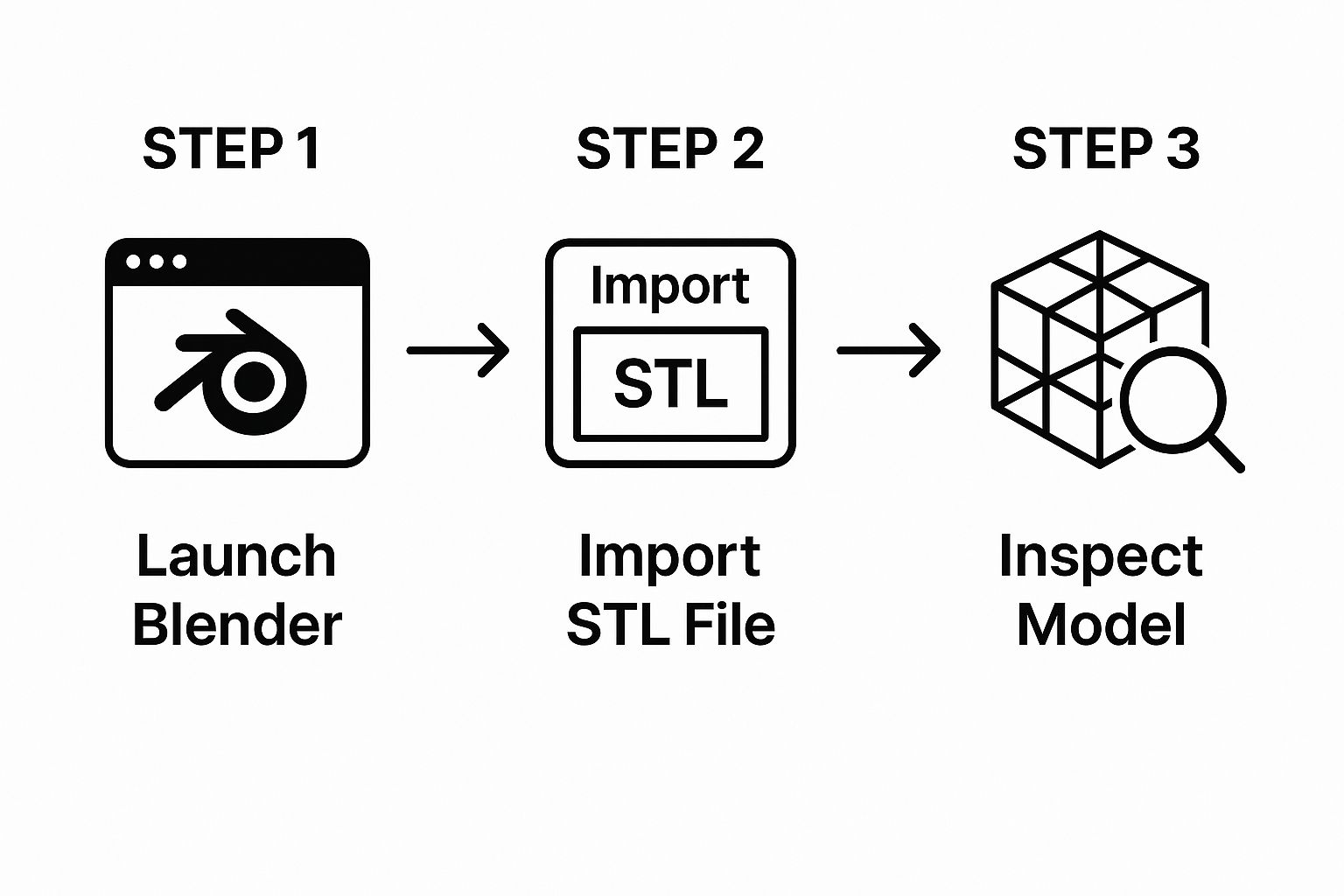
MeshLab is the free mesh garage. File → Import Mesh. Use it when a download “might have issues” and you do not want to discover that in the slicer.
Filters worth running on first open:
- Non-manifold edges — more than two faces on one edge.
- Holes — not watertight.
- Inverted faces / normals — a patch that is inside-out. Color-by-quality / normal shading makes these obvious.
Fill Hole and Remove Non-Manifold Edges are the usual first filters. If you are about to reshape the part, stop and use the edit guide.
Blender (general viewport)
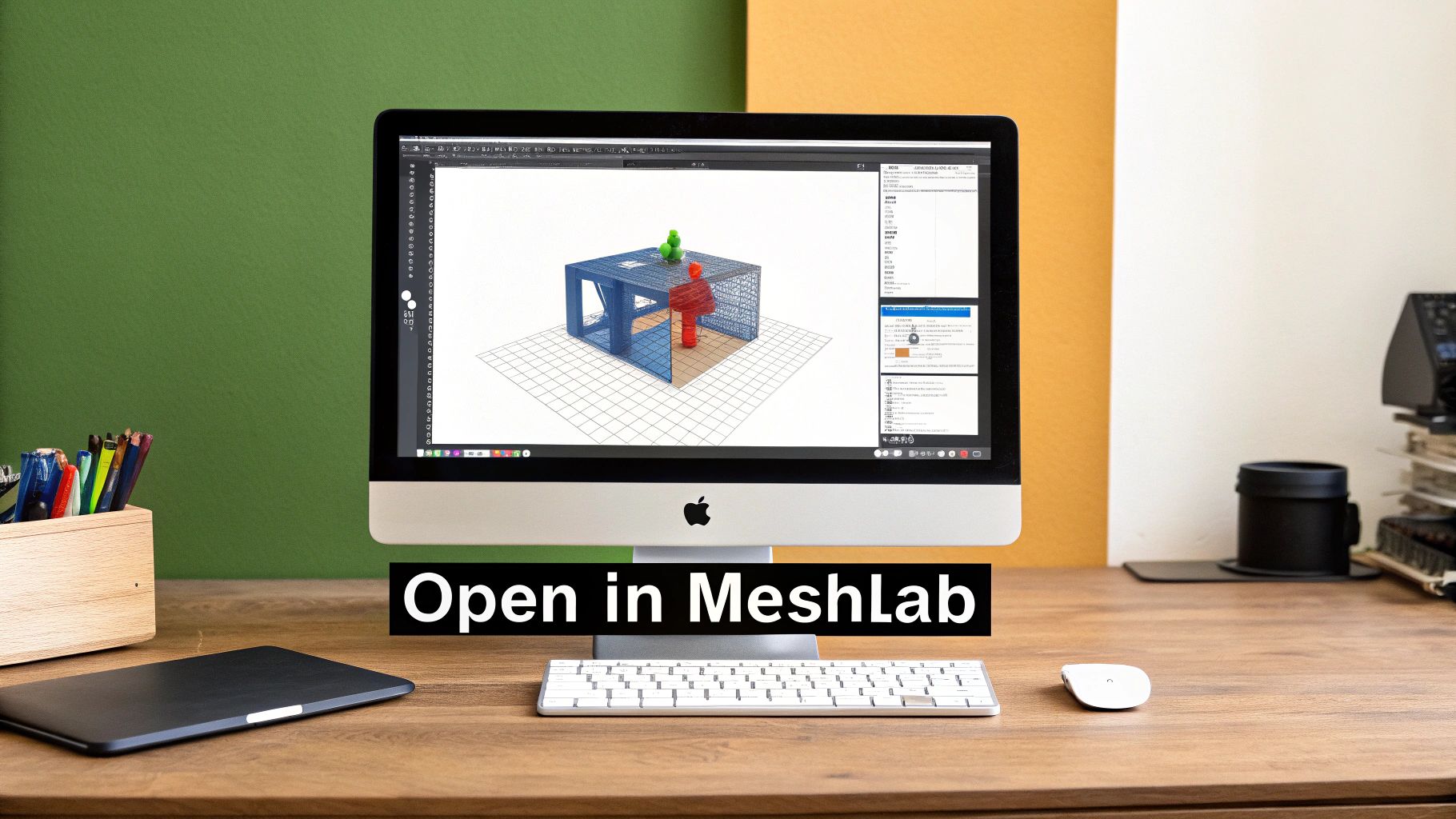
Blender: File → Import → STL. Default scene is meters; a millimeter medical mesh will look like a speck or, after a bad scale, a building. Fix scale before you judge the shape.
Object Mode is move / rotate / scale of the whole object. Tab into Edit Mode to see the triangles. That is enough to confirm you opened the right file. Sculpt, remesh, and boolean work belong on the edit page; export (File → Export → STL) only after those edits.
When it will not open, or opens wrong
- Wrong size. Unitless file. Inches loaded as mm → 25.4× too small (or the reverse). Scale in Slicer or Blender; do not re-export blindly from a viewer that “auto-fixed” units.
- Crash / refuse to load. Truncated download. Try MeshLab; it eats damaged STLs more often than CAD. If MeshLab fails, re-get the file.
- Machine crawls. High poly count, not a corrupt file. Decimate in MeshLab or Blender, or close other apps and try again. Do not decimate a planning mesh until you have measured the original.
Which free tool
- 3D Slicer — anatomical STL next to the scan.
- MeshLab — diagnostics, holes, non-manifold.
- Blender — general 3D view; edit only if you meant to.
A plain viewer is enough for “what does this look like?” Anything you will print or measure still needs the scale check.
PYCAD builds custom web DICOM viewers when the mesh has to live next to the series in a clinical or medtech app. Case studies.