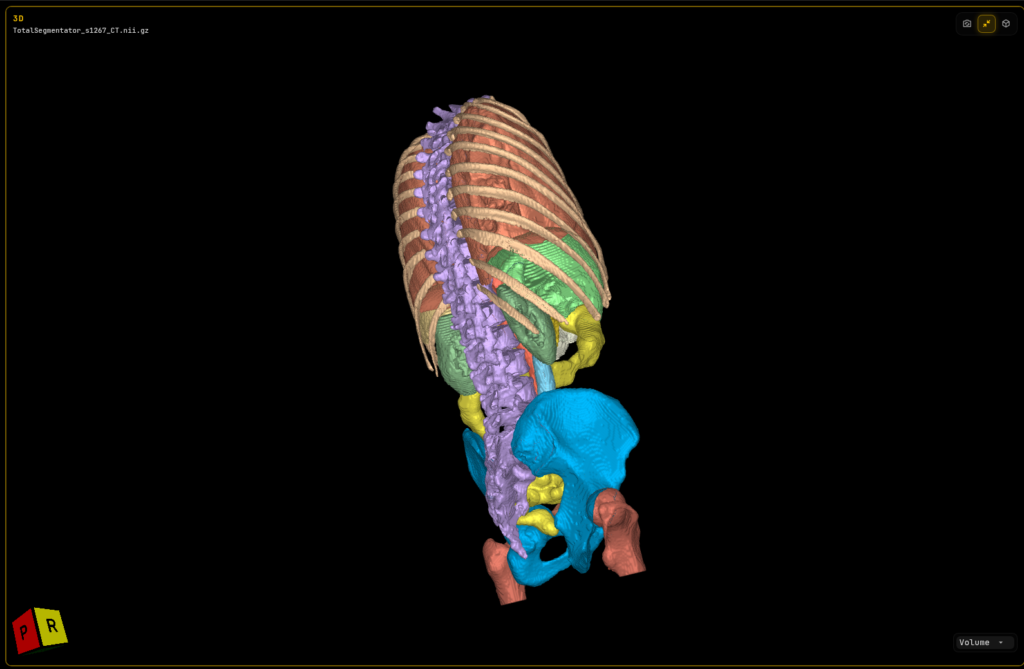
If you run a 3D segmentation service, you can package the CT or MRI scan, the label maps and the 3D meshes into one browser link and send that to your client instead of a Sketchfab model. The client opens the link and gets the full case. They can scroll the original slices in axial, coronal and sagittal views with your label-map overlays on top, rotate the 3D surfaces, and see every structure in the colors and visibility you chose. A Sketchfab-style share gives them the surface model only.
The same link opens on a phone. A client or doctor can open a segmented CT or MRI case with label maps on their phone browser, switch between Axial, Coronal, Sagittal, 3D and Volume tabs, and they don’t need to install anything. The scan loads at full resolution.
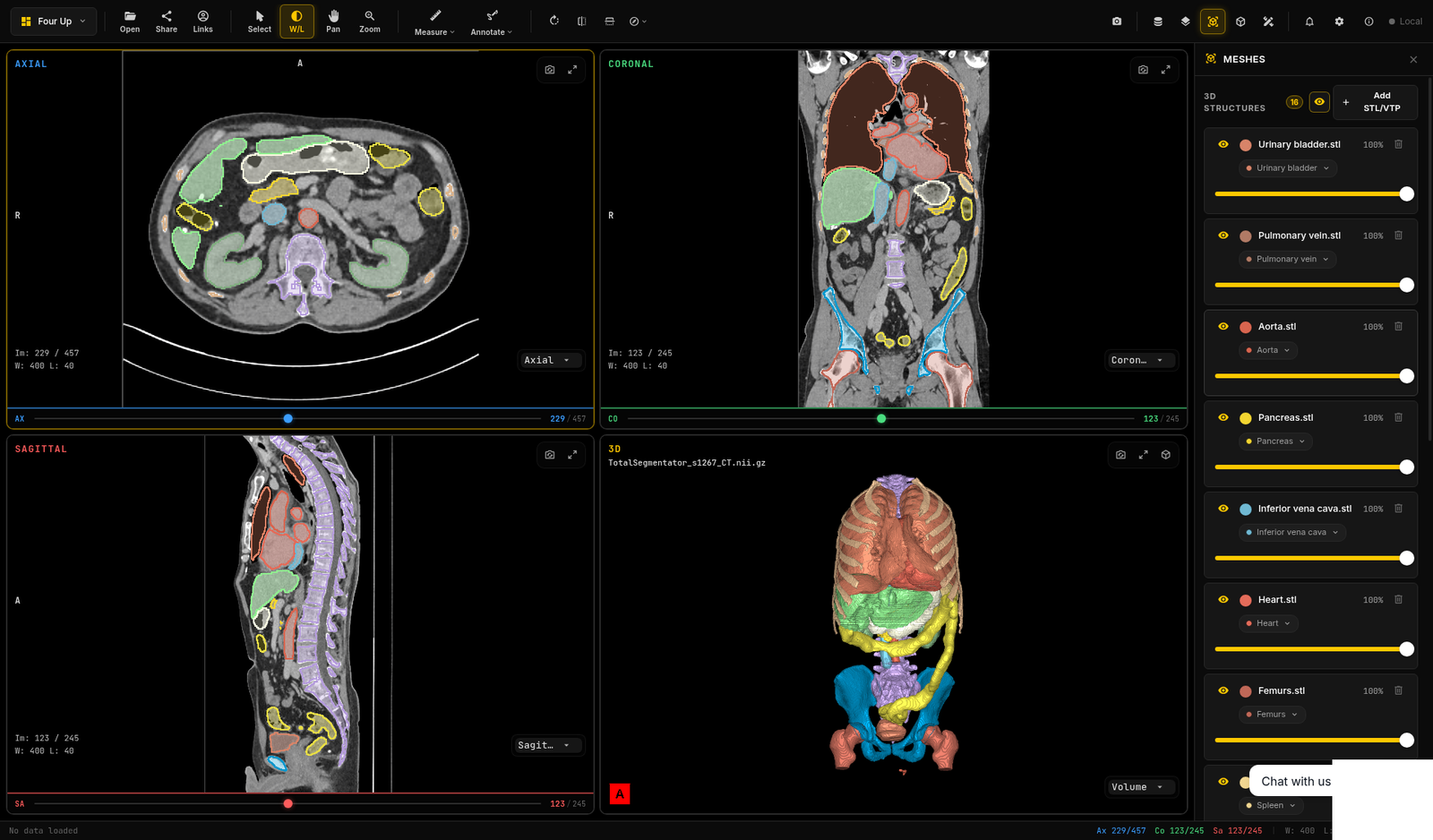
You can try this right now in our live DICOM viewer demo. Load the “Chest, Abdomen & Pelvis” sample. It is a whole-trunk CT with 16 labeled structures, and it shows exactly what a client would see when they open one of your shared cases.
I’m Nour, founder of PYCAD. We build medical imaging software, and segmentation teams we talk to run into this delivery gap. They do careful work on a scan and then hand over a mesh file or a 3D model page, and the client loses the link between the model and the anatomy it came from. If you want to talk through how this would fit your delivery, contact us.
What your client gets when they open the link
A shared case in PYCAD’s web DICOM viewer restores the session exactly as you saved it. The person who opens the link sees:
- the original scan in axial, coronal and sagittal views, plus 3D and volume rendering
- every label map overlay, with the fill and outline settings you picked
- every 3D mesh
- each structure’s color, visibility and opacity
- annotations and any other work you applied before sharing
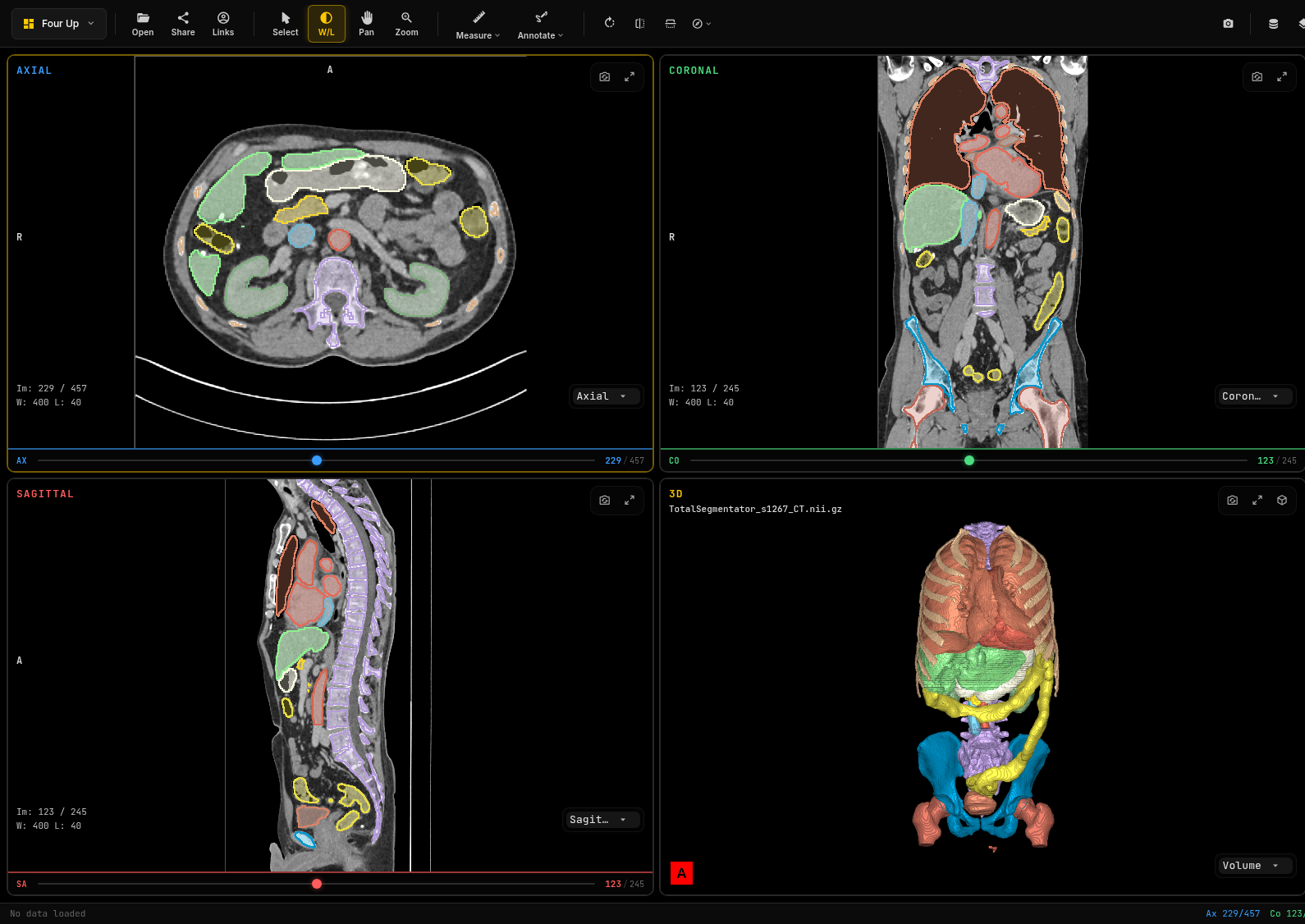
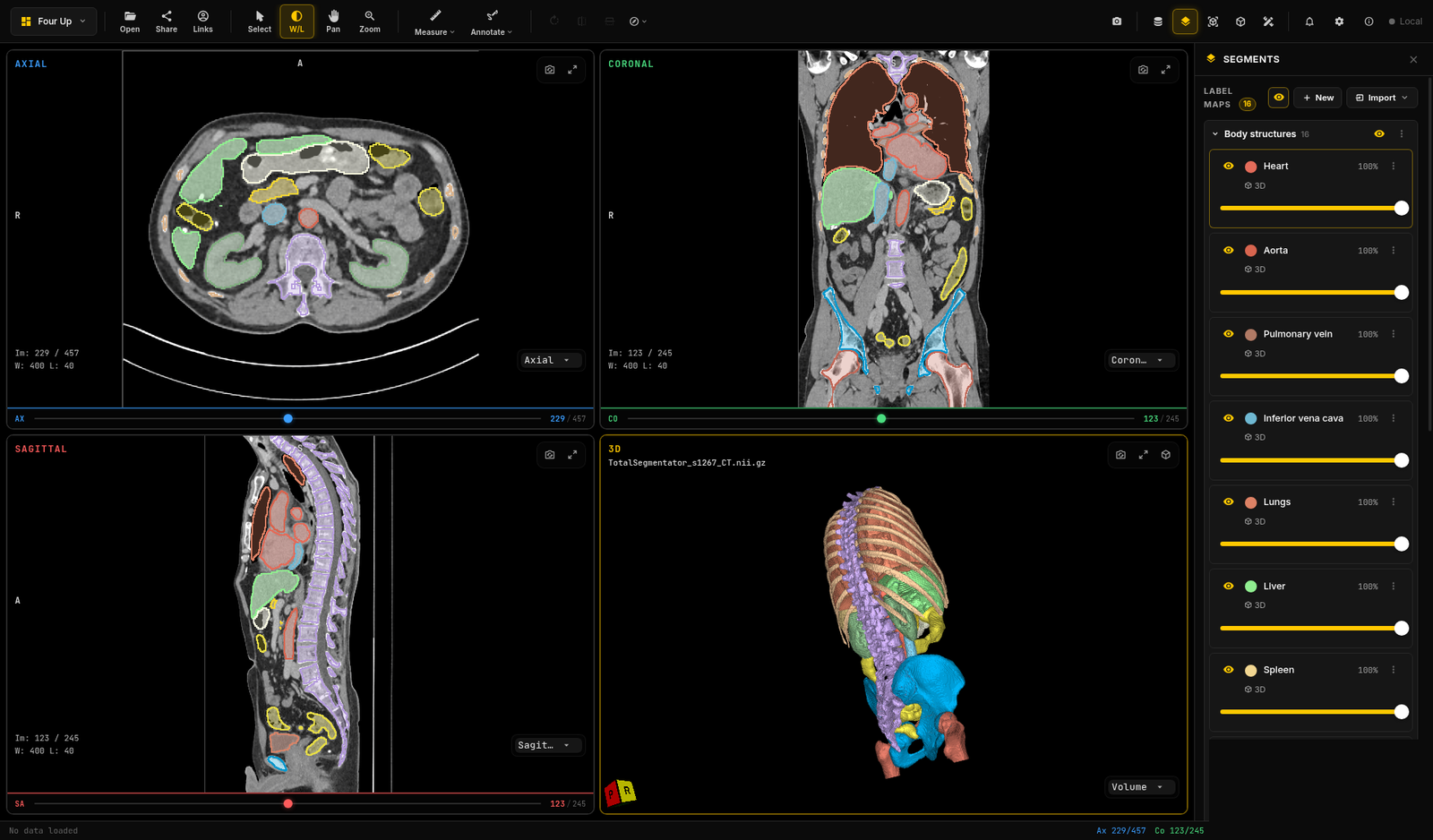
Meshes and label maps are linked as one structure. The heart mesh and the heart label map share one color, and one eye toggle and one opacity slider control both the 3D surface and the 2D overlay. When your client hides the liver to see the vessels behind it, the liver disappears from the slices and from the 3D view together.
Where a Sketchfab model fits, and where it stops
Sketchfab’s 3D viewer is good at what it was built for. It puts an interactive 3D model in a browser that anyone can rotate and zoom, and its features page shows how much work has gone into presenting 3D content well. If you send clients a Sketchfab link today, it does that job.
For medical segmentation delivery, the gap is the volume underneath. A surface model on Sketchfab doesn’t carry the CT or MRI it was segmented from. Your client can’t scroll through the slices to check where a boundary sits, can’t toggle a label-map overlay on and off over the original intensities, and can’t compare the mesh against the scan in the same view. When a client reviews a segmentation, those are the checks they want to make.
Sending the whole case answers those questions inside the link, so the client doesn’t need to ask you for the raw files and a desktop viewer.
Formats the viewer reads
Segmentation pipelines output different files, so the viewer accepts the common ones for each layer of the case.
- Scans: DICOM (single files, folders or a zip), NIfTI (.nii and .nii.gz), NRRD, MetaImage and several other volume formats.
- Label maps: NIfTI, NRRD and DICOM SEG.
- 3D meshes: STL (binary and ASCII) and VTK polydata (.vtp and .vtk).
DICOM SEG is the standard DICOM object for segmentations. The Segmentation IOD describes it as a multi-frame image that classifies pixels in one or more referenced images, and the segmentations can be binary, fractional or label maps. If your pipeline writes NIfTI instead, which is common for research CT and MRI, the viewer reads both the volume and the label maps directly.
If your meshes are in OBJ, glTF or PLY today, you’ll need to export STL or VTK for now.
How to share a segmented case from the viewer
The steps are the same whether the case is a CT or an MRI.
- Open the scan in the viewer.
- Add the label maps and the 3D meshes from your pipeline.
- Set colors, visibility and opacity for each structure, and add any annotations you want the client to see.
- Click Share. The viewer packages the session and uploads it to PYCAD’s share server, then gives you a hosted link.
- Add a password if you want one, copy the link and send it to your client.
Each hosted link expires after 30 days by default, and the expiry date is shown when you create it. You can revoke a link at any time, so a case you sent to the wrong person, or one that’s been superseded by a corrected segmentation, can be taken offline. Your client doesn’t go through the email form that the public demo page asks for. They click the link and the case opens.
When you open files locally in the viewer, the data stays in your browser and nothing is uploaded. A hosted share is different, because the packaged session has to live somewhere your client can reach it. I’d rather you know that before you click Share.
If your data already sits at public URLs, a quick link is the alternative. It carries the view state and pointers to the remote files, so nothing gets uploaded to us.
If you deliver a lot of cases and want to see how this would work with your current outputs, contact us and tell us what your pipeline produces.
Opening a segmented CT or MRI case on a phone
Clients often open a delivery email on their phone. In the viewer, phones and tablets load the full-resolution scan with no downsampling. The screen shows one view at a time, with tabs for Axial, Coronal, Sagittal, 3D and Volume, so the client can move between the slices and the model with a thumb. It all runs in the mobile browser, with no app to download.
In this video I walk through our viewer, including how a case looks and behaves on a phone screen.
Your pipeline does the segmentation, the viewer delivers it
The viewer doesn’t run AI segmentation itself. Your segmentation comes from your own pipeline, whether that’s an AI model, manual contouring by your annotators, or both. The viewer displays those results, lets you edit them with paint and multi-label tools if something needs a touch-up, and shares them.
That way you can show your AI or manual segmentation results, with the original scan, in a link a doctor or client can open on any device.
FAQ
How can a 3D segmentation service share the CT scan, label maps and 3D model with a client in one browser link?
Load the scan, the label maps and the STL or VTK meshes into PYCAD’s web DICOM viewer, set the colors and visibility, and click Share. The client gets a hosted link that opens the full case in the browser, with slices, overlays and 3D surfaces. You can add a password, and you can revoke the link at any time.
Can I open a segmented MRI or CT case with label maps on a phone without installing software?
Yes. A shared link opens in the phone’s browser, loads the scan at full resolution, and shows Axial, Coronal, Sagittal, 3D and Volume as tabs. The label-map overlays and meshes come with it, and there is nothing to install.
What’s the difference between sending a Sketchfab model and sending the whole case?
A Sketchfab share shows an interactive 3D surface model. A whole-case link also includes the original CT or MRI volume and the label maps, so the client can scroll the slices, toggle overlays and check each structure against the scan.
Which label map formats can I share?
NIfTI, NRRD and DICOM SEG label maps, alongside DICOM, NIfTI or NRRD scans and STL or VTK meshes. If you work with another format, contact us and we’ll tell you what fits.
Try it with your own delivery in mind
Open the live demo, load the Chest, Abdomen & Pelvis sample, and click through the slices, the label maps and the 3D view the way your client would. Then contact us with how you deliver cases today and which formats your pipeline outputs, and we’ll show you what the same case looks like as one link.