Most dental and OMF teleradiology groups we talk to read CBCT in a web viewer that opens in the browser with nothing to install. The radiologist opens the scan from a link or a worklist, reviews it in MPR (axial, coronal and sagittal), builds a panoramic along the dental arch, scrolls the cross-sections along that arch, adjusts window/level and measures in millimetres. The radiologist reads the whole volume and writes the report.
The tools come in three kinds: vendor-hosted web viewers that the referring clinic or imaging center uploads to, viewers attached to a PACS the group already runs, and desktop dental software on each reading station. For remote reading, I think the browser options make the most sense, because a radiologist reading from home can open the case on any computer without copying a disc or installing software.
I’m Nour Islam Mokhtari, founder of PYCAD. We build PYCAD Dental Viewer, a client-side viewer that runs in the browser, and this post covers what a dental teleradiology CBCT viewer needs and the reading setup we built for it. If you run a reading group, book a demo and we will show it on a scan like the ones your readers get.
What a remote CBCT read involves, according to the AAOMR
The American Academy of Oral and Maxillofacial Radiology defines teleradiology in its 2016 Executive Council advisory as “(1) the transmission of radiographic images beyond the immediate vicinity of image acquisition, for the purpose of image interpretations by a receiving practitioner, and (2) the transmission of interpretations by the receiving practitioner to the requesting clinician.” Its example is a dentist who “sends a panoramic image or CBCT scan to an oral and maxillofacial radiologist for written interpretation or opinion.” The advisory calls the exchange asynchronous. The scan arrives, the radiologist reads it later, and the report goes back. A 2025 literature review on oral and maxillofacial teleradiology (JRDI) says: “In dentistry, oral and maxillofacial radiologists often interpret these images remotely.”
Three AAOMR positions shape the reading tool.
- A report is required. The 2008 AAOMR statement on CBCT says: “Just as a pathology report accompanies a biopsy, an imaging report must accompany a CBCT scan.”
- The whole volume gets reviewed. The same statement says the practitioner “must examine the entire image dataset,” and lists what the field of view can include: intracranial structures, the skull base, the paranasal sinuses, the cervical spine, the neck and the airway. It calls the idea that a user has no responsibility beyond a specific task such as implant planning “erroneous.”
- Interpretation questions go to a specialist. The AAE and AAOMR joint position statement says: “If a clinician has a question regarding image interpretation, it should be referred to an oral and maxillofacial radiologist.”
The 2016 advisory also says the receiving practitioner “should maintain appropriate licensure in the receiving state.” Our post on what a teleradiologist is covers the role itself.
The JRDI review also lists the risks of reading remotely: “Image compression methods that may impact diagnostic quality, internet connectivity … concerns regarding privacy, authentication, and data integrity.” Ask any viewer vendor about each one.
What the reading viewer has to do for CBCT
On every case the radiologist checks that the right scan loaded and is complete, gets oriented in this patient’s anatomy, reads the whole volume, and writes the report.
MPR in three planes
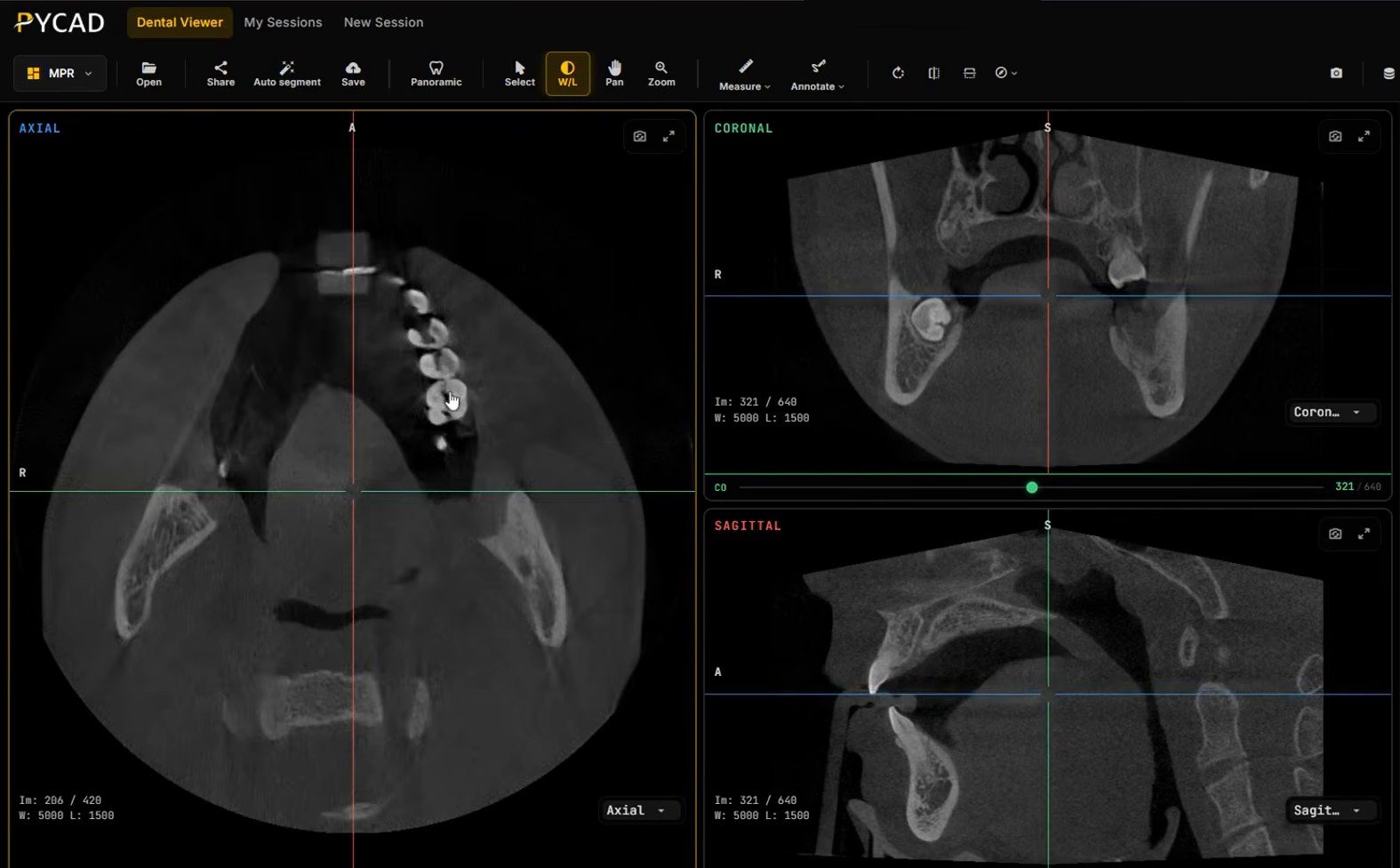
Axial, coronal and sagittal views with linked crosshairs are where the whole-volume review happens. The panoramic follows the arch, so structures on the AAOMR list such as the sinuses, the cervical spine and the airway need the three planes.
A panoramic built from an editable arch
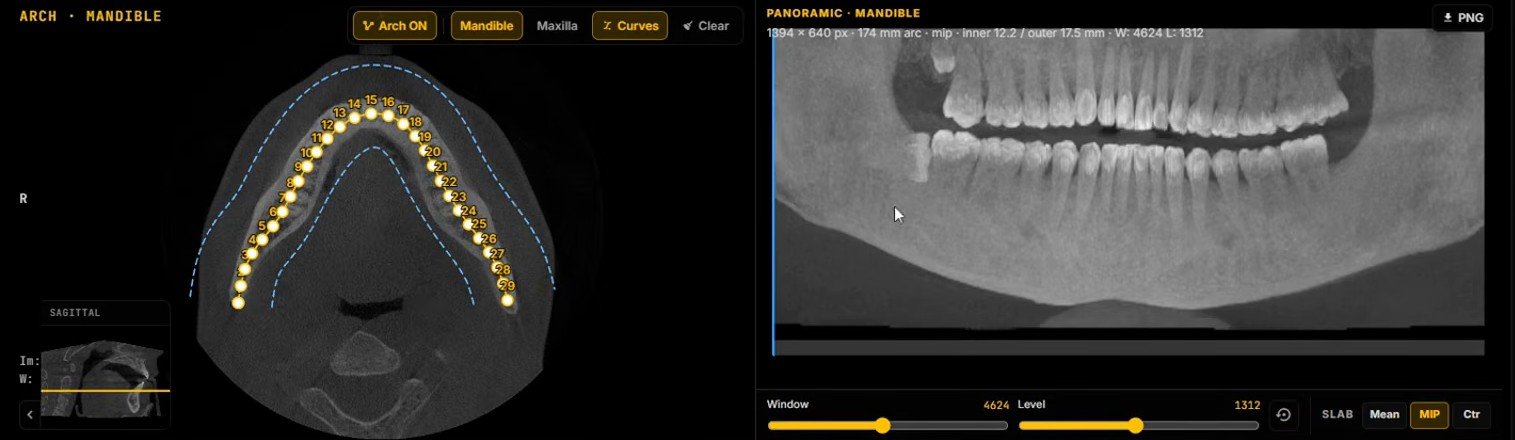
The reader places an arch on an axial slice and the viewer reconstructs a panoramic along it. An automatic arch saves time, but the reader still needs to add or remove points and move the boundaries of the corridor, because the arch decides what the panoramic shows.
Cross-sections, window/level and measurements
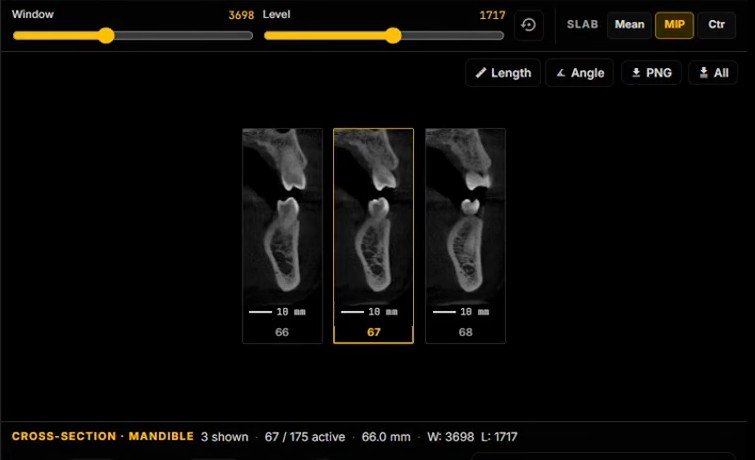
Cross-sections cut across the arch at each position, so the reader sees bone height and width, the canal and the roots at one site. Window/level should update the panoramic and the cross-sections together, so the reader adjusts contrast once and every reconstruction follows. Length and angle tools should read in millimetres from the DICOM geometry.
Saved sessions
Reads get interrupted. If the viewer saves the session, the radiologist can close the tab and pick the case up later without redrawing anything.
Pulling scans from the archive
Many groups keep studies in a PACS or cloud archive. The DICOM Standard’s DICOMweb page describes DICOMweb as “the DICOM Standard for web-based medical imaging. It is a set of RESTful services,” including Query (QIDO-RS) and Retrieve (WADO-RS). It also notes that DICOMweb “can be implemented directly or as a proxy to the DIMSE services,” so “image-producing modalities don’t all need to be retrofitted to support DICOMweb.” For a reading group, this means a browser viewer can pull a study from the archive with no change at the referring clinic.
PYCAD Dental Viewer, set up for reading
Recently I talked with a dental teleradiologist about what they need in a dental viewer. They told me they always generate a panoramic from the CBCT, and that out of everything the viewer can do, they only need MPR, the panoramic and the cross-sections. PYCAD Dental Viewer is built from modules we turn on or off per customer, so for that reading workflow we enable those three and switch the rest off.
In this video I open a CBCT in PYCAD Dental Viewer, generate the arch and panoramic in one click, show window/level updating the panoramic and cross-sections together, then run AI segmentation.
Two shorts cut from it show CBCT to panoramic in one click and switching off the modules a reader does not need.
In the reading variation, the radiologist reviews the volume in MPR, clicks Auto generate to get the arch, adjusts it if needed, and reads the panoramic and cross-sections. Sessions save automatically when something changes. This variation has no implant tools.
An implant planning variation adds AI segmentation and an implant module instead, which I show in this implant planning video.
Tell us about your reading workflow and which views your radiologists use, and we will set up the modules to match.
AI segmentation, if you want it
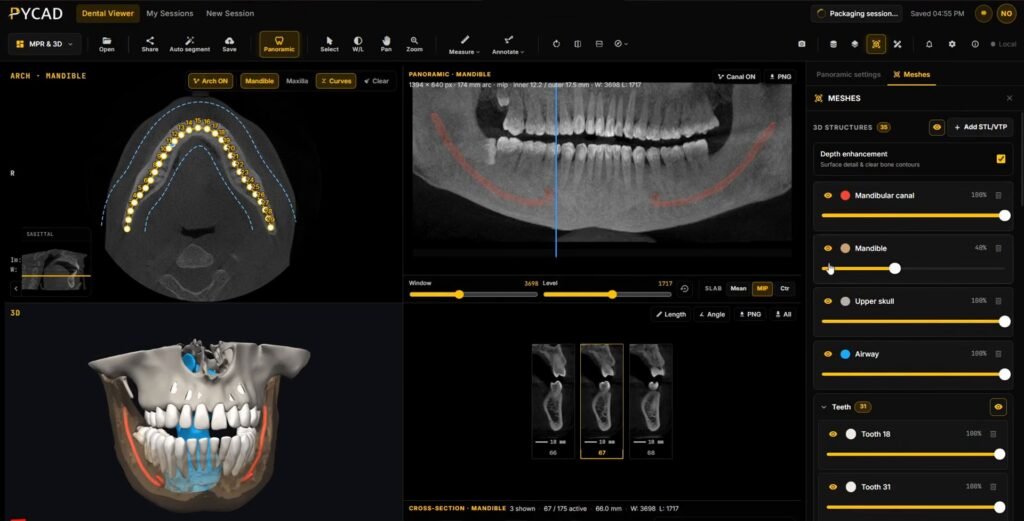
AI segmentation is an optional module. When the reader clicks Auto segment, the browser packages the session and sends it to our servers, and the results come back into a 3D scene. A Meshes panel lists the mandibular canal, the mandible, the upper skull, the airway and the teeth, and each one can be shown or hidden. The canal also appears on the panoramic and in the cross-sections.
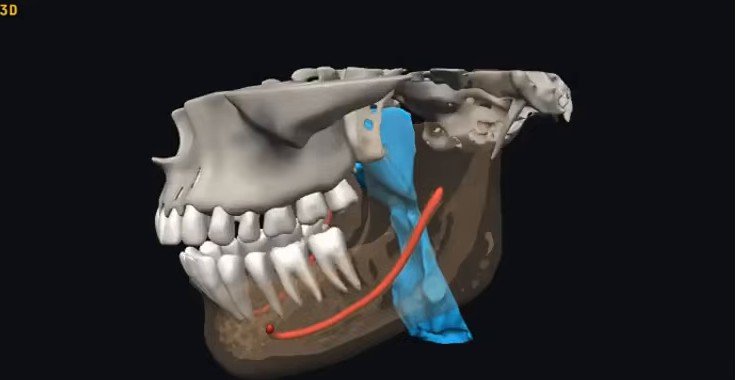
For a reader, this helps with orientation, for example following the canal through the cross-sections.
Where the viewer runs
By default, PYCAD Dental Viewer runs on PYCAD’s servers. AI segmentation needs this default setup.
As an optional, non-default choice, a group that already has its own server can have us connect the viewer to it, so scans load from the group’s PACS or cloud provider. If you want to talk through either option, book a demo.
Referring dentists who receive scans from an imaging center can read how dentists open a CBCT scan. Platforms that want a viewer inside their own product can use our zero-footprint DICOM viewer OEM embed checklist.
Questions people ask about dental teleradiology viewers
What viewer do dental teleradiology companies use to read CBCT?
Most groups we talk to read in a browser-based viewer that opens the scan from a link or worklist, with MPR, a panoramic built from the arch, cross-sections, window/level and millimetre measurements. Others use a PACS-attached viewer or desktop dental software on each reading station.
Does the viewer diagnose or write the report?
No. The oral and maxillofacial radiologist reads the whole volume and writes the report, as the AAOMR expects for every CBCT.
Do I need to install software to read a CBCT remotely?
Not with a browser viewer. PYCAD Dental Viewer runs in the browser, so the radiologist opens the case on any computer and can save the session to finish later.
Can a web viewer load scans from our existing PACS?
Yes, if the archive offers a web interface such as DICOMweb for querying and retrieving studies. For PYCAD Dental Viewer, connecting to your PACS or cloud provider is an optional setup we do for groups that already have their own server.
Try it on a test scan
Open a de-identified CBCT in the free PYCAD Dental Viewer, or start from the demo page. Generate the arch, scroll the cross-sections and change window/level.
Contact us and tell us three things: how scans reach your readers today, which views your radiologists use, and whether you’ll use our default servers or want us to connect the viewer to your PACS or cloud provider.