
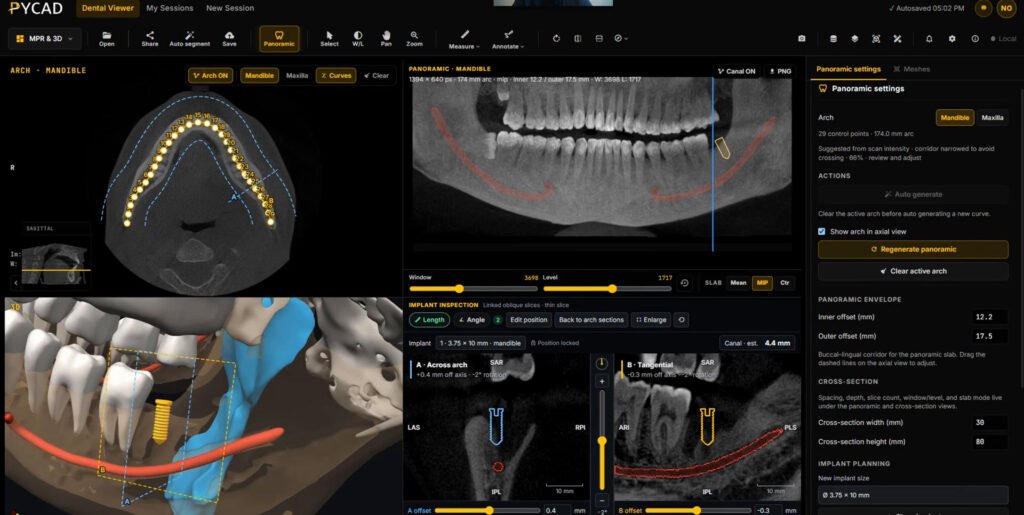
If you run dental software and want to embed a CBCT viewer in your product, you have three realistic options. You can build one from scratch on imaging libraries such as VTK, vtk.js, ITK, or Cornerstone3D. You can extend an open-source viewer, which usually means OHIF on top of Cornerstone3D, with an archive like Orthanc behind it. Or you can license a dental viewer that already exists and embed it under your brand.
Building from scratch fits a company that sells the viewer as its core product and has an imaging engineering team ready to own it for years. Open source fits teams whose needs look like radiology (slice scrolling, MPR, windowing, standard measurements) and who are comfortable working inside the OHIF extension model. Licensing fits practice software, imaging hubs, teleradiology services, and aligner or implant platforms. They need dental views in front of users soon, and they’d rather spend their engineers on the rest of the product.
I’m Nour Islam Mokhtari, and I founded PYCAD. We build web DICOM viewers and embed them in other companies’ platforms, and our dental one is the PYCAD Dental Viewer. So I have a stake in the third option. I’ll try to be fair about when the first two are the better call.
If you already lean toward licensing, book a demo and we’ll go through the viewer together.
The three paths side by side
| Build | Open source (OHIF, Cornerstone3D, Orthanc) | License a dental viewer | |
|---|---|---|---|
| Time to first usable release | Longest | Medium. Fast for radiology features, slower for dental ones | Shortest, mostly integration work |
| Dental views (curved panoramic, cross-sections, implant and canal tools) | You write all of them | You write them as extensions | Already there |
| Who maintains it | Your team | Your team, tracking upstream releases | The vendor, under a support agreement |
| Branding and white-label | Full control | Full control, plus the upstream UI to restyle | Depends on the license tier |
| Team skills needed | 3D rendering, DICOM, GPU and browser performance | React, OHIF extensions, DICOMweb | Front-end and backend integration |
| Cost shape | Ongoing salaries | Ongoing salaries, no license fee | License fee plus a smaller integration effort |
What “dental” adds over a generic DICOM viewer
A generic DICOM viewer shows axial, coronal, and sagittal slices. You can scroll, zoom, and adjust window and level. Dentists and dental specialists expect more from a CBCT.
The first thing they look for is a curved panoramic view. The user draws or adjusts a curve along the dental arch on an axial slice, and the viewer reconstructs a panoramic image along that curve. Then they want cross-sections perpendicular to the arch at each point, so they can check bone height and width at a tooth or implant site. As the user moves along the curve, all of those views have to stay in sync.
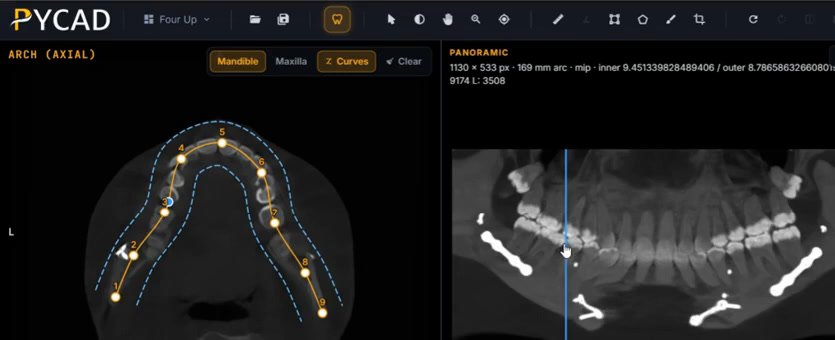
Implant planning brings its own tools. Users place an implant model on the scan, rotate it, and check its position against the surrounding anatomy in every plane and in 3D. Tracing the mandibular canal belongs to the same job, because users want to see how close a planned implant sits to the nerve.
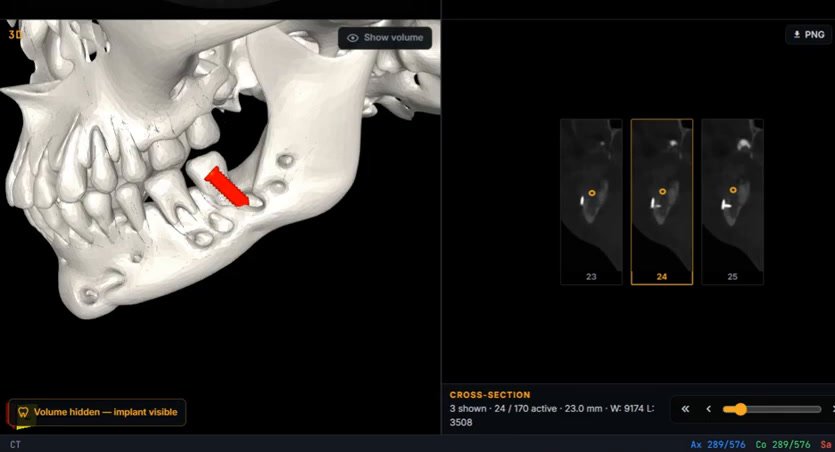
Measurements have to be in millimetres derived from the DICOM geometry. That means the viewer must read spacing and orientation correctly for every scanner your customers use. A distance that’s wrong because the viewer ignored pixel spacing is worse than no measurement at all.
CBCT scans are also large single volumes with fine isotropic voxels. If a viewer loads the whole volume into memory before showing anything, it will feel slow on a clinic laptop and may fail on a tablet. So the viewer needs to load the scan progressively in the browser, and the user should be able to start scrolling before the last slice arrives.
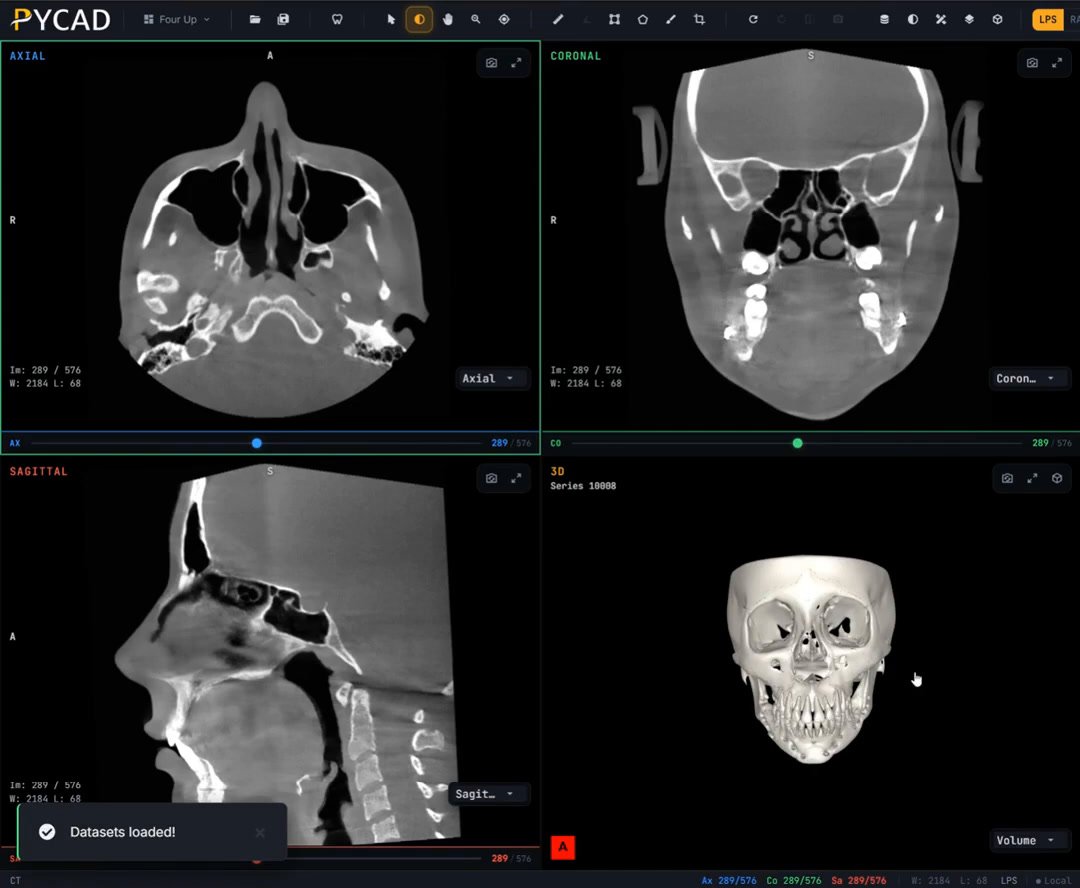
Finally, dental work is referral work. An imaging center scans the patient, and a general dentist, surgeon, or orthodontist somewhere else needs to see the result. So sharing a study with a referring dentist through a link is part of the product, and the people who receive that link often open it on whatever device they have.
Everything above is about viewing and measurement. Whether any of it counts as a medical device in your market depends on your intended use and where you sell. Talk to your regulatory advisor before you commit to a path.
When building or open source is the right call
Build from scratch if the viewer is the product you sell and you have, or plan to hire, people who know 3D rendering and DICOM well. You’ll own every decision, from how volumes stream to how the panoramic curve is edited, and nobody else’s roadmap can block you. You also own every bug, every scanner quirk, and every browser update that breaks rendering.
Go with open source if your users mostly need radiology-standard viewing and your dental needs are narrow. OHIF gives you a mature study browser, hanging protocols, MPR, and a measurement framework. Orthanc gives you a DICOMweb archive you can run yourself. This path can work well if your team can write the dental pieces as OHIF extensions and is willing to keep up with upstream releases. I wrote more about where OHIF fits, and where it stops fitting, in our OHIF viewer overview.
Both paths turn the viewer into a long-term engineering commitment. You need an imaging team that is strong and that will stay.
When licensing makes sense, and what drives the cost
License when your users need the viewer but it isn’t what your company is known for. A practice management product, an aligner platform, or an imaging hub usually wins on workflow, scheduling, case management, or treatment design. The CBCT viewer has to be good, but your engineers’ time is better spent on those things.
We don’t publish a single price. The same viewer can be a small add-on for one platform and a large white-label rollout for another. These factors move the number:
- Where scans come from. By default, scans are stored on our servers and the viewer loads them from there. If you already run your own server, you can choose to have us connect the viewer to your PACS or cloud provider instead.
- Scale. The number of users, sites, or tenants, or the volume of studies, depending on which unit fits your business.
- White-label depth. Your logo and colours are one level. Your domain, per-tenant branding, and no vendor marks anywhere is another.
- Custom modules. Features your product needs that the viewer doesn’t have yet.
- Support and SLA. Response times, upgrade cadence, and who is on call when something breaks.
- Integration work. Connecting the viewer to your login and your case flow.
If you want a number for your situation, get your embed scope. Send us those factors and we’ll scope it.
How it works with us at PYCAD
The PYCAD Dental Viewer runs in the browser, and you can try it on our dental DICOM viewer demo. It opens CBCT and dental CT scans with axial, coronal, and sagittal MPR, plus a curved panoramic view along the arch that stays synchronized with cross-sectional slices. Users can measure distances, angles, and density in millimetres, load segmentation masks as colour overlays, and share a session with a colleague through a link.
The viewer embeds inside a host product, so your users stay in your app and see your branding. Large scans load progressively in the browser, so nobody stares at a blank screen while a full CBCT downloads. By default, the viewer runs on our servers, and your scans are stored and loaded there. AI segmentation needs that default, because it runs on our servers. If you already have your own server, you can choose to have us connect the viewer to it, so scans load from your PACS or cloud provider.
For the technical side of an embed (iframe or component, login handoff, case loading, per-tenant branding, entitlements), your engineering team should read our zero-footprint DICOM viewer OEM embed checklist. It lists the questions we work through in every scoping call, so I won’t repeat them here.
One viewer, different variations depending on where it’s embedded
A radiologist reading a scan and a surgeon planning an implant need different tools on screen. So the PYCAD Dental Viewer comes in variations, and we pick the variation based on the platform it goes into.
Teleradiology reading platforms
A teleradiology partner told me they needed CBCT plus panoramic and cross-section viewing, so their radiologists can check the scan, understand the patient, and write their reports. The reading variation is built around that. Reporting stays the radiologists’ work. This variation has no implant planning tools, and it doesn’t produce AI-only reads. The viewer shows the scan, and the radiologist decides what goes in the report. I wrote separately about how teleradiology groups read CBCT in the browser.
Implant planning platforms
Implant planning platforms get the variation with the planning tools. Users place implants from STL implant libraries, trace the mandibular canal, and check the implant’s position across planes and in 3D. If you’d like to see that before opening the demo, here’s my walkthrough of implant planning in the viewer, from my video “Custom web DICOM viewer for dental implant planning”:
If you know which kind of platform you’re embedding into, book a demo and tell us which variation fits. If you’re not sure yet, we can work that out on the call.
Next step
Open the dental viewer demo and load a CBCT you’re allowed to use. Draw the arch, scroll the cross-sections, and place an implant. Within a few minutes you’ll know whether the dental tools match what your users do.
Then get your embed scope by sending us three details:
- What your product is and who uses it.
- How scans reach your product today: scanner exports or patient uploads.
- Whether you’ll use our servers, which is the default, or want us to connect the viewer to your own PACS or cloud provider.
We’ll come back with a scope and a license proposal for your case. If you’d rather talk it through first, Contact us.