

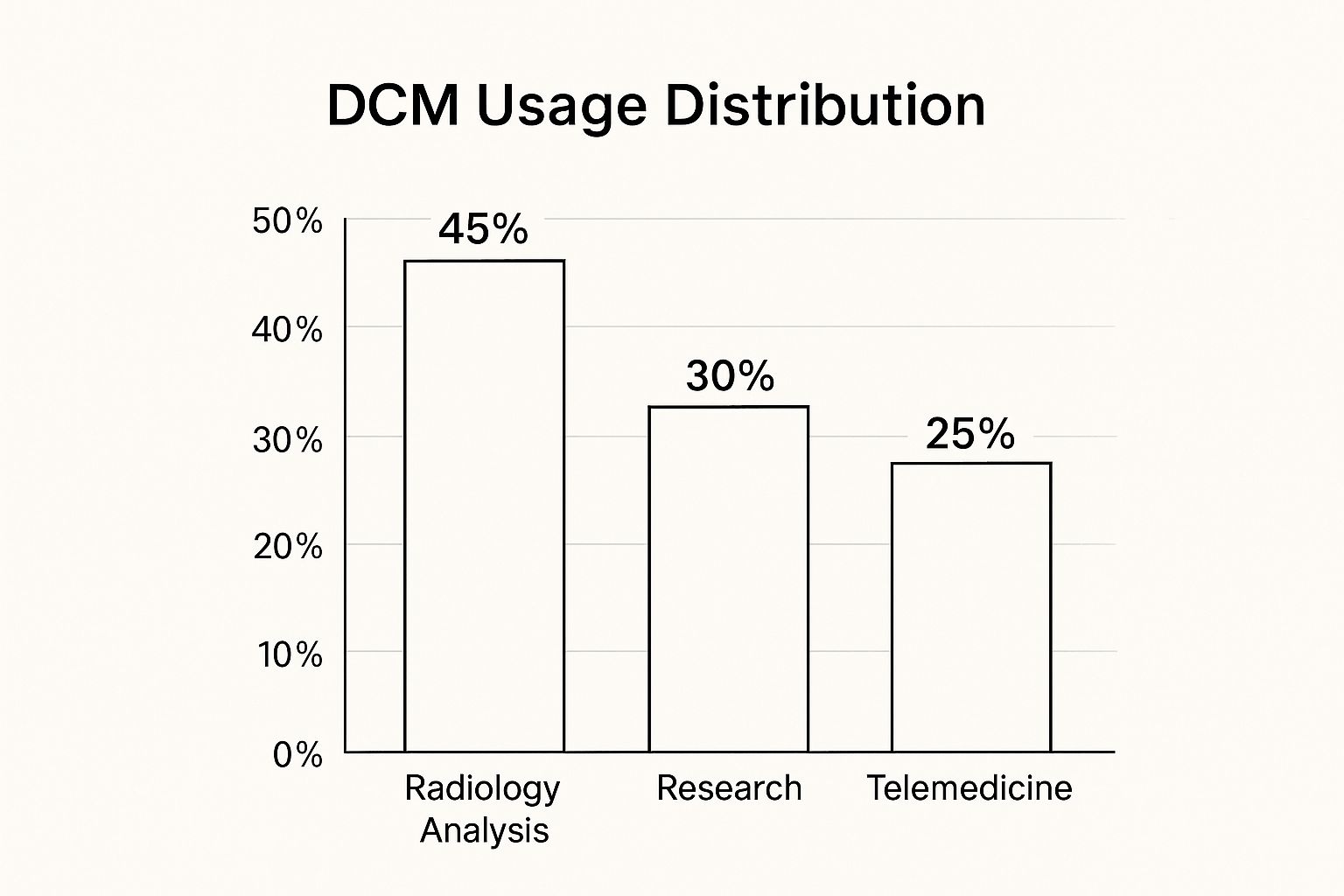
To open a DCM file, use a DICOM viewer. A DCM file is a medical image in the DICOM format, and regular photo apps either can’t read it or show only part of it. The quickest route is a viewer that runs in your web browser, with nothing to install. If that doesn’t suit you, use the viewer that came on your hospital disc or USB stick, or install a free desktop app for your operating system. Photo editors and converters only make sense for a single flat 2D image, such as one X-ray.
This works the same for CT, MRI, CBCT and X-ray files. Below are the four options in the order we at PYCAD would try them, followed by what to check before you drop a scan into a website, what a DCM file contains, and what to do when it won’t open.
How to open a DCM file in four steps
1. Open it in a browser viewer
A browser viewer is the fastest option on a computer where you can’t or don’t want to install software. Some online viewers read files locally in the browser, so the scan stays on your device. Others upload it to their servers first. Check which kind you are using before you open a scan with your name in it (questions to ask are in the next section).
Our free PYCAD DICOM Viewer runs in your browser with nothing to install. Open the page and load your DCM files.
When you get a whole study (a CT or MRI series), load the full folder rather than one file. Each .dcm file is often a single slice, so one file on its own shows one image out of hundreds.
2. Use the viewer on the disc or USB
Hospitals and imaging centers often put a viewer on the same disc or USB stick as your scan. Open the disc and look for:
- an .exe file or an app with “viewer” in its name
- an autorun file that starts the viewer when you insert the disc
- a DICOMDIR file next to a folder of images (often named DICOM)
The DICOMDIR file is an index of the study. If you open the DICOMDIR or the folder that contains it in any viewer, the series load in order.
Disc viewers are usually built for Windows. On a Mac or Chromebook, the .exe will not run, so copy the whole disc to your computer and use step 1 or step 3.
3. Install a desktop DICOM viewer
Desktop apps load large studies well and work offline. Pick by operating system:
- Windows: RadiAnt DICOM Viewer is fast at scrolling, zooming, panning and basic measurements. MicroDicom is lighter and sticks to core viewing.
- macOS: Horos is an open-source viewer based on OsiriX, with series browsing, measurements and window leveling (brightness and contrast). OsiriX comes in a free Lite edition and a paid MD edition.
- Any OS: 3D Slicer, Weasis and ITK-SNAP run on Windows, macOS and Linux. Slicer and ITK-SNAP add 3D views and segmentation tools, with a steeper learning curve.
| App | Operating system | Good for |
|---|---|---|
| RadiAnt | Windows | Fast scrolling through CT and MRI series |
| MicroDicom | Windows | Quick, lightweight viewing |
| Horos | macOS | Series browsing, measurements, 3D views |
| OsiriX | macOS | Lite for viewing; MD is the paid edition |
| Weasis | Windows, macOS, Linux | Cross-platform viewing |
| 3D Slicer | Windows, macOS, Linux | 3D, segmentation, research |
| ITK-SNAP | Windows, macOS, Linux | Segmentation and 3D |
Most of these let you import a folder or drive, move through slices and series, adjust brightness and contrast, and measure distances. Free editions sometimes leave out PACS connections and advanced 3D tools, so check the app’s own site for what the free version includes.
4. Photo editors and converters, for single 2D images only
Some photo editors, GIMP among them, can import a DICOM image, and many converters turn DCM into JPG or PNG. Use this only for a single flat 2D image, such as one X-ray you want to paste into a document. You lose two things when you convert:
- the metadata, including pixel spacing, so measurements stop being reliable
- the other slices, so a CT, MRI or CBCT series can’t be scrolled or viewed in 3D
For anything with more than one slice, go back to step 1, 2 or 3.
Free online viewers: check whether the file gets uploaded
A DCM file carries your name, date of birth and scan details in its header, next to the images. Before you drop a scan into a website, ask:
- Does the site say whether files are read in your browser or uploaded to its servers?
- If files are uploaded, where are they stored, for how long, and can you delete them?
- Does it ask for an account or an email before you can view anything?
- Is there a privacy policy that mentions medical images?
- Does it remove patient details before anything is shared or stored?
You can also test it yourself. Load the viewer page, disconnect from the internet, then open your file. If the scan still opens, the viewer read it in your browser. If you know your way around browser developer tools, the Network tab shows any upload as it happens.
If you plan to send a scan to someone else, anonymize it first or use the sharing channel your hospital or clinic provides.
On a phone or tablet
Browser viewers also work on tablets. Copy the files to the device through cloud storage such as Google Drive, a cable, or a transfer method your provider approves, then open them in the browser. iOS and Android also have dedicated DICOM apps with pinch-to-zoom and swipe controls for brightness and contrast. The same upload questions apply to them.

What is inside a DCM file
A DCM file follows DICOM (Digital Imaging and Communications in Medicine), the standard medical imaging devices and software use to store and exchange scans. The standard dates back to the 1980s; the DICOM history page covers how it developed. Because scanners from different makers write the same format, one viewer can open files from many machines.
Each file holds two parts:
- Image data from an X-ray, CT, MRI, CBCT, ultrasound or other scan. That can be one 2D image or one slice of a series that together forms a 3D volume.
- A metadata header with the details a clinic needs.
The header usually includes:
- patient information such as name, ID and date of birth (often removed when files are shared for research)
- study details such as exam date and time and the referring doctor
- equipment details such as manufacturer, model and scan settings
- image parameters such as pixel size, slice thickness and orientation
The image parameters are what let a viewer measure distances in millimeters and stack slices into a 3D view. A JPG has neither.
Opening a scan lets you look at it. The radiologist’s report is what explains it, so take questions about what you see to your doctor.
When a DCM file won’t open
Common causes
- The file was damaged while being copied from a scratched disc or a faulty USB stick, or the download did not finish.
- You opened one slice of a larger study, and the viewer needs the whole folder.
- The file uses a DICOM variation or compression your viewer does not support. DICOM is a standard, but scanner makers implement parts of it differently.
- The viewer itself has a bug or needs an update.
How to find the cause
- Check the source. Copy the files from the disc again, or download them again and confirm the download finished.
- Read the error message. Messages such as “Invalid DICOM header” or “Cannot parse file” point to the file rather than the viewer.
- Try a second viewer. If the file opens in one app and not the other, the first app is the problem. If it fails everywhere, the file probably is.
- Check the size. A CT or MRI study is usually many files adding up to hundreds of megabytes or more. A single DCM file of a few kilobytes is likely incomplete or damaged.
How to fix it
- Open the whole folder or the DICOMDIR file instead of one .dcm file. Look for “Import folder” or “Open directory” in your viewer.
- Get a fresh copy from the original disc, USB stick or download link.
- Update your viewer, or switch to another one from the list above.
- If the files came from a hospital or clinic and fail in several viewers, contact their medical records or IT department and ask for a new copy.
For imaging centers and clinics: if you send CBCT scans to referring dentists, point them to our guide on how to open a CBCT scan. If you would rather send patients and dentists a link than a disc, we at PYCAD build branded web DICOM viewers for centers that share scans.
For a quick look at your own scan, start with our free DICOM viewer. If you run a center and want to talk about a viewer for your patients and referrers, get in touch with us.